Jailbreak Tool Guides
unc0ver Jailbreak
unc0ver jailbreak guide

Unc0ver official address:https://unc0ver.dev/Copy
Support equipment: iPhone 5s - iPhone 12 series
Support for iOS version: iOS 11 - iOS 14.8 (12.5.6 / 12.5.7 except)
jailbreak, please make sure the device is not unlocked and please turn off my iPhone to prevent all accidents.
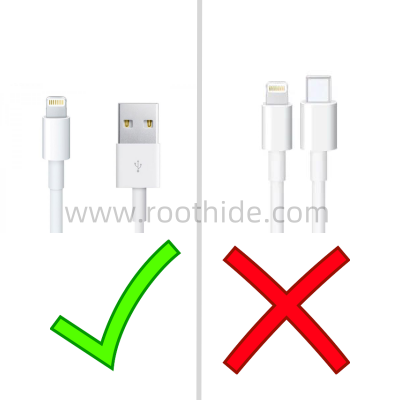
Use USB-A (the old apple data line) for jailbreak, and USB-C cannot jailbreak.
It contains the following:
1、jailbreak guide:
This is an example of the iPhone 7 iOS 133.1 system.
jailbreak is recommended for Aeth's assistant.
Ace's assistant online address:https://www.i4.cn/Copy
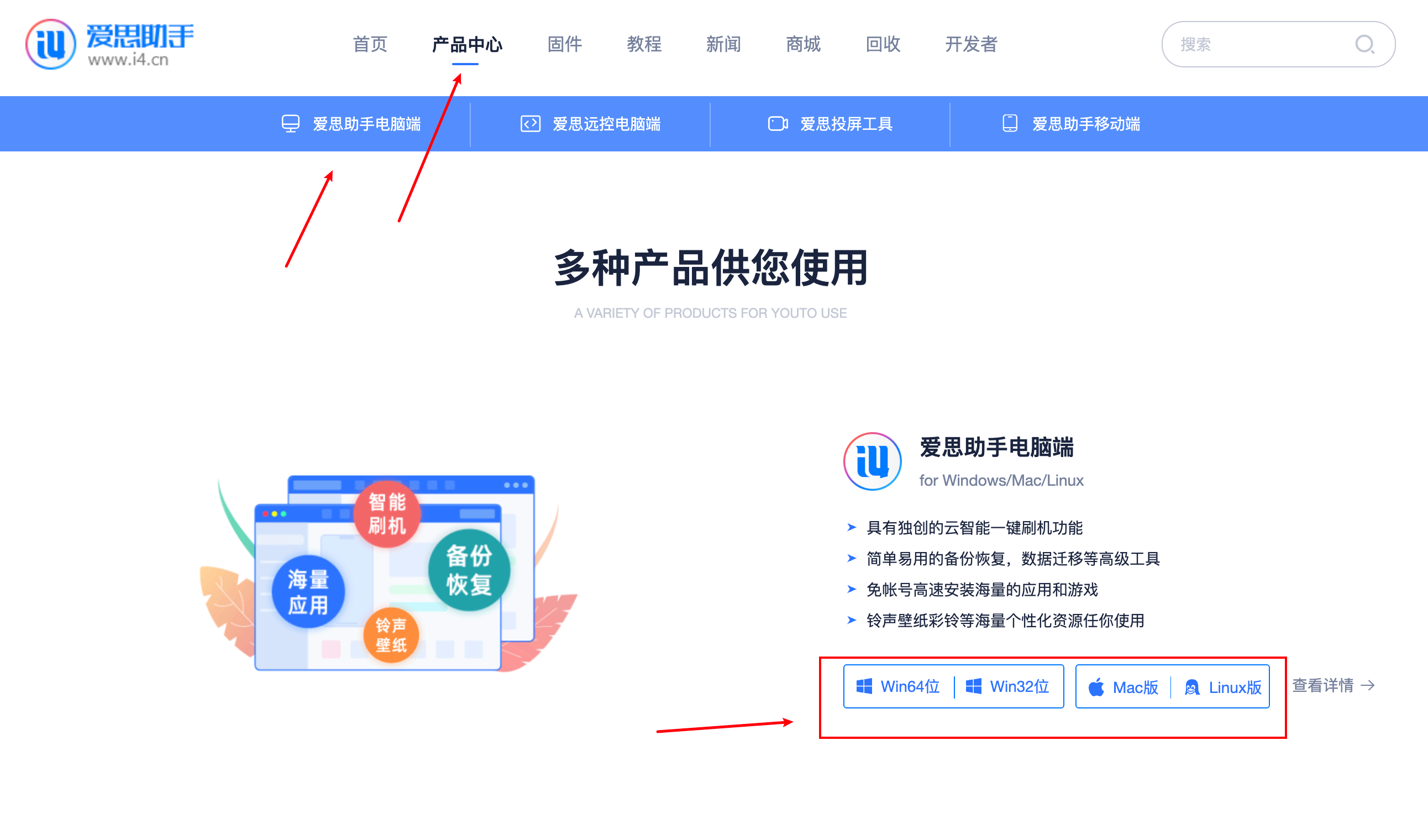
Download the corresponding version by computer type
Use data lines to connect mobile phones after installation and turn on Aether's assistant
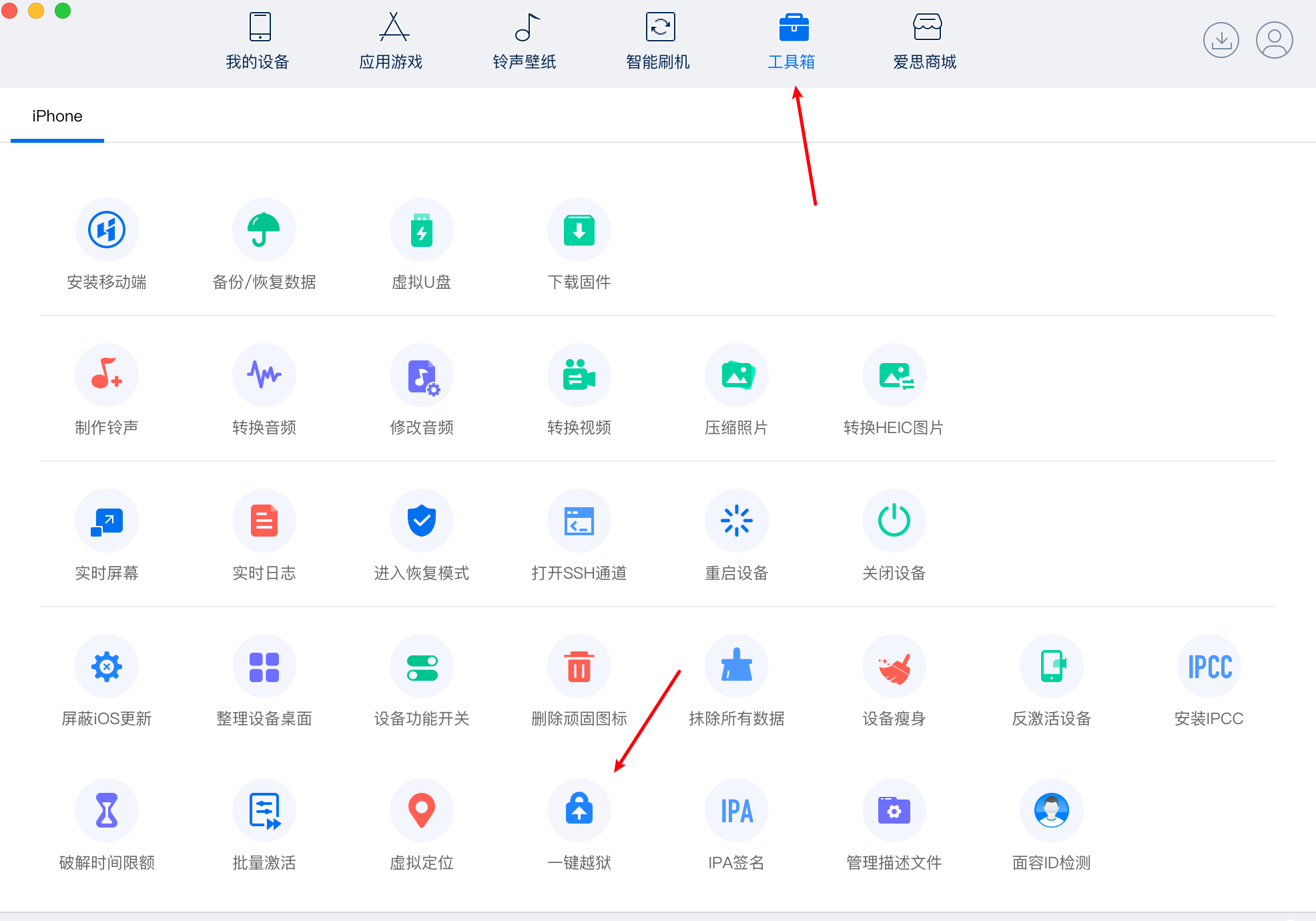
Click on Top Toolbox
And click jailbreak, open jailbreak tool

Check unc0ver, click to start jailbreak
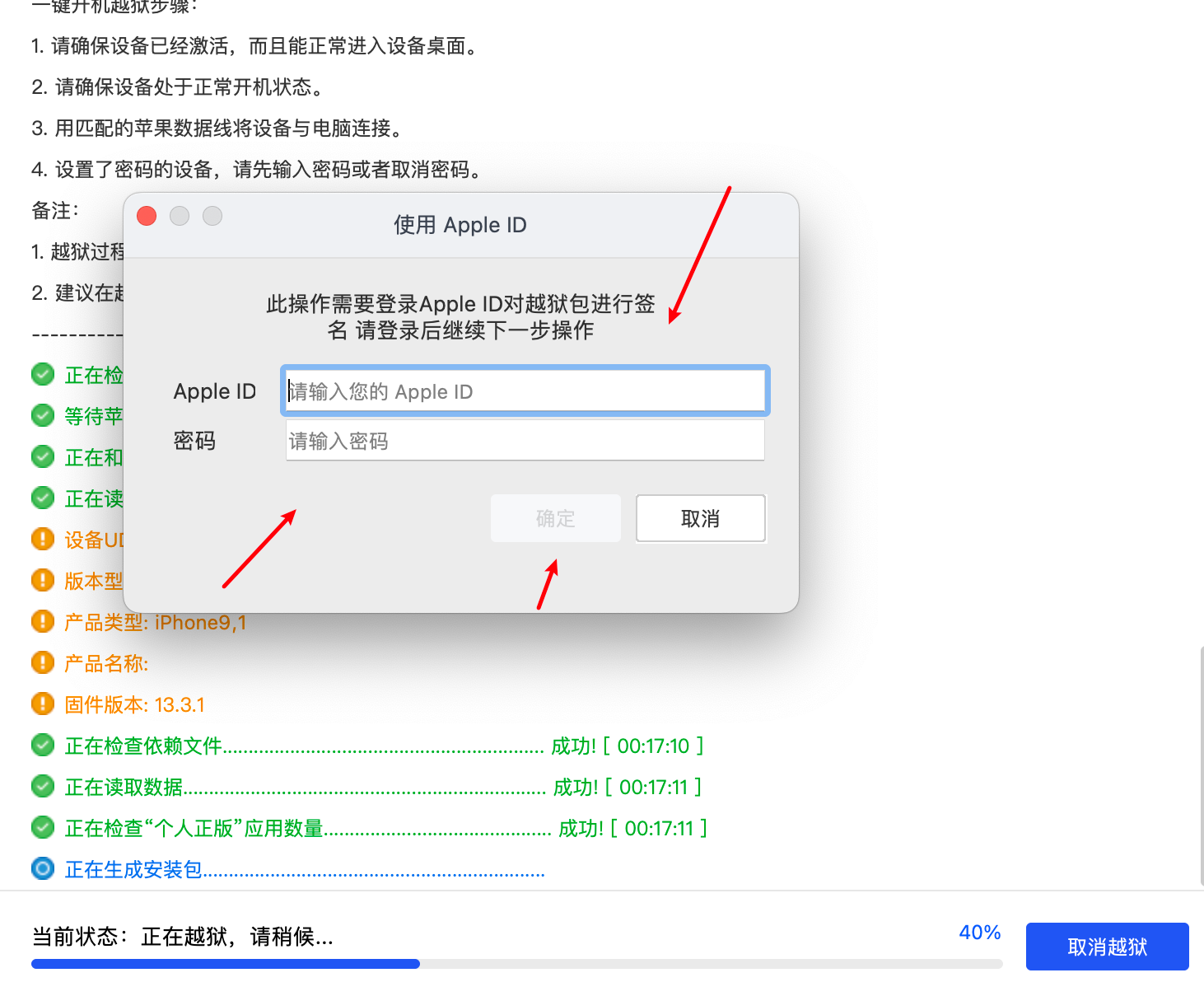
Starts the jailbreak step by ejecting a dialogue box that requires the input of appleid into your own apple id point.
If there's a red word for failure, the probability is an apple id problem, you can try it again.
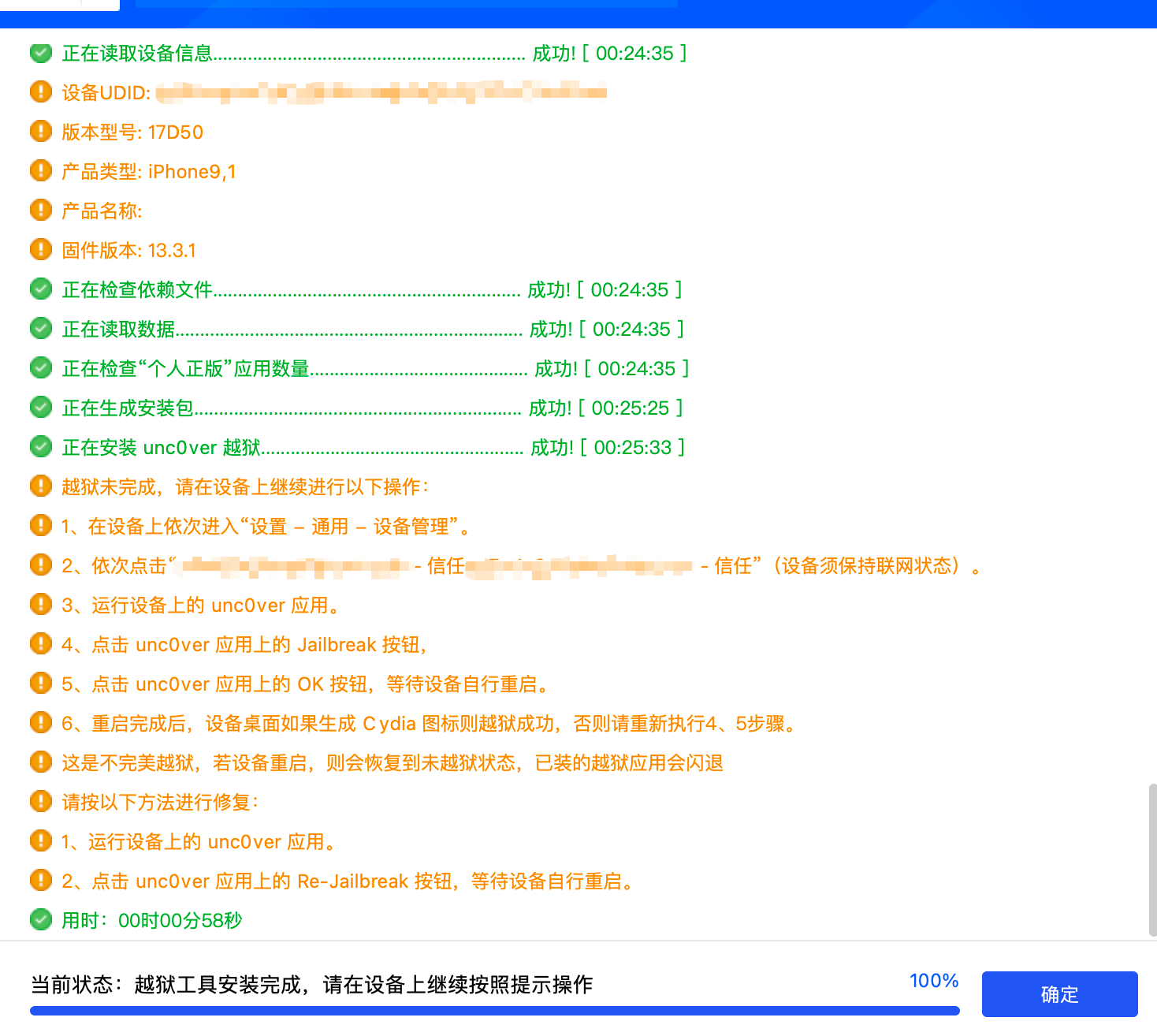
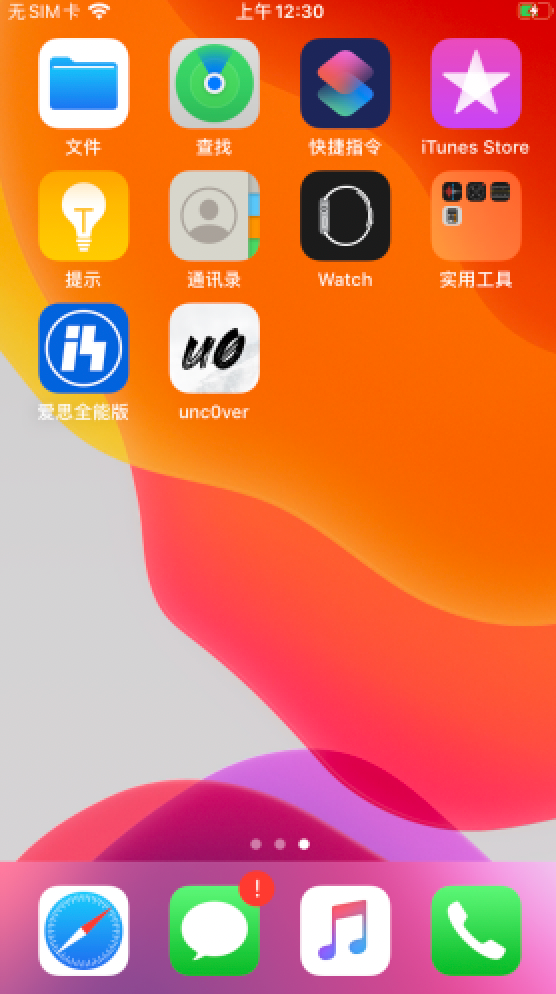
jailbreak completes and continues with the next operation as a hint when you see an unc0ver icon on your cell phone desktop.
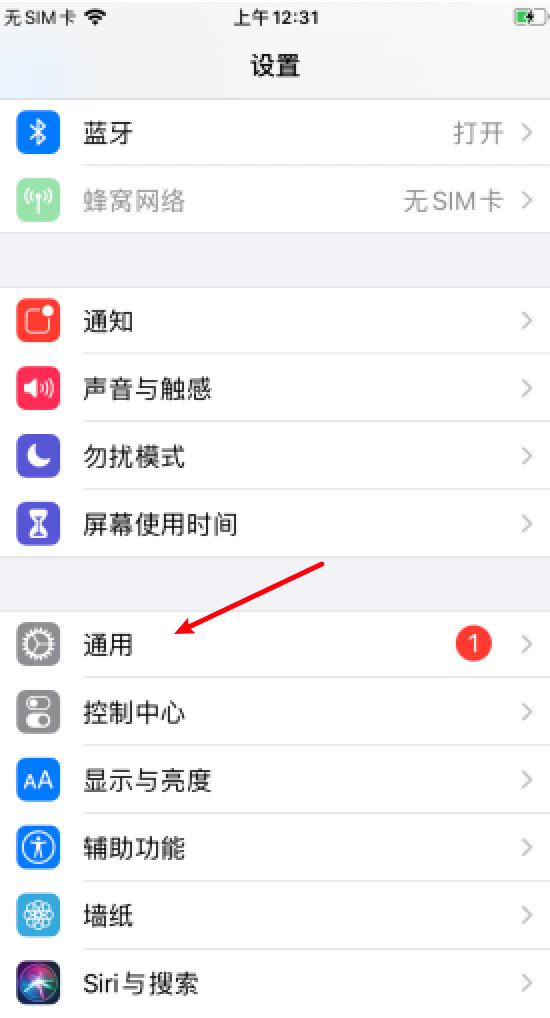
Open iOS Settings, click Universal
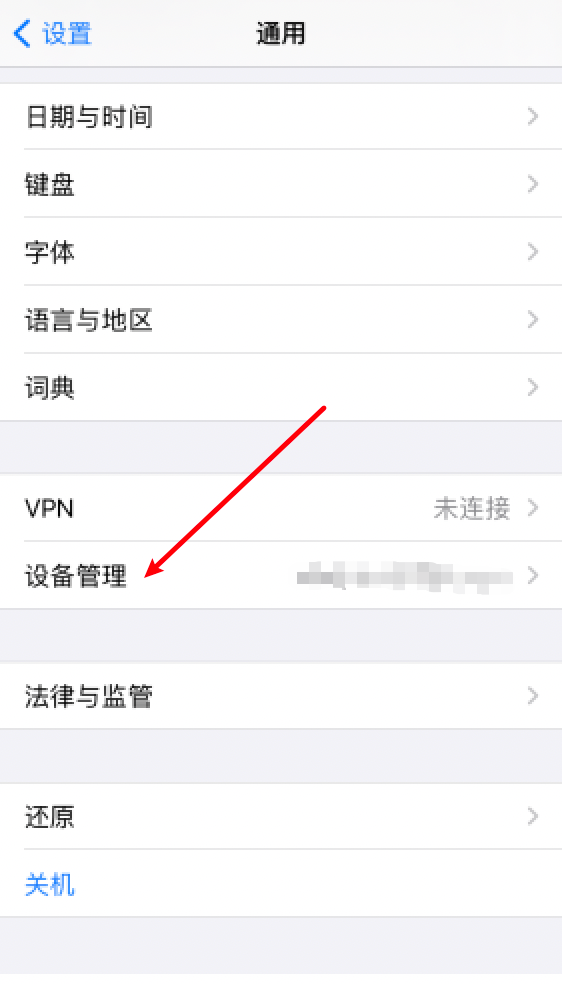
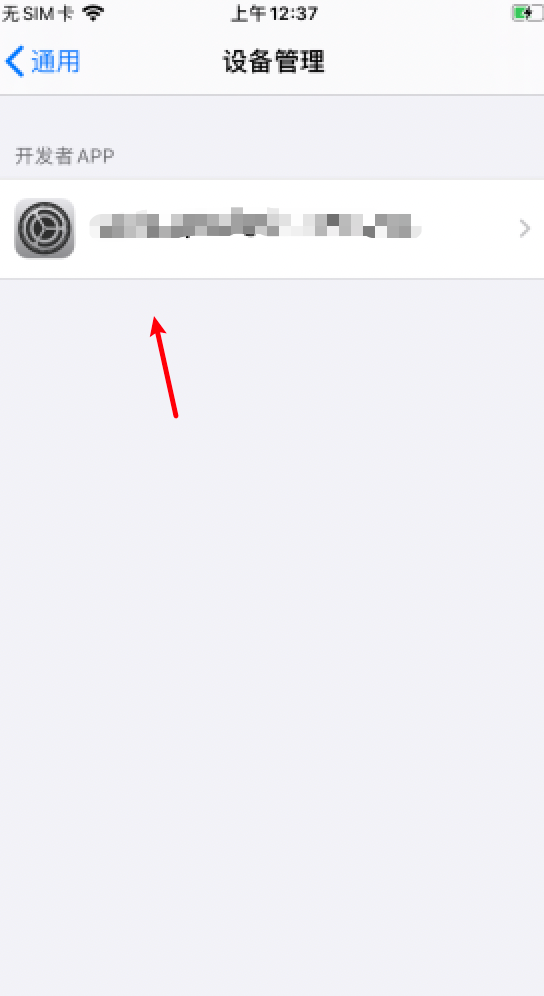
Click on Device Management,Click Developer APP
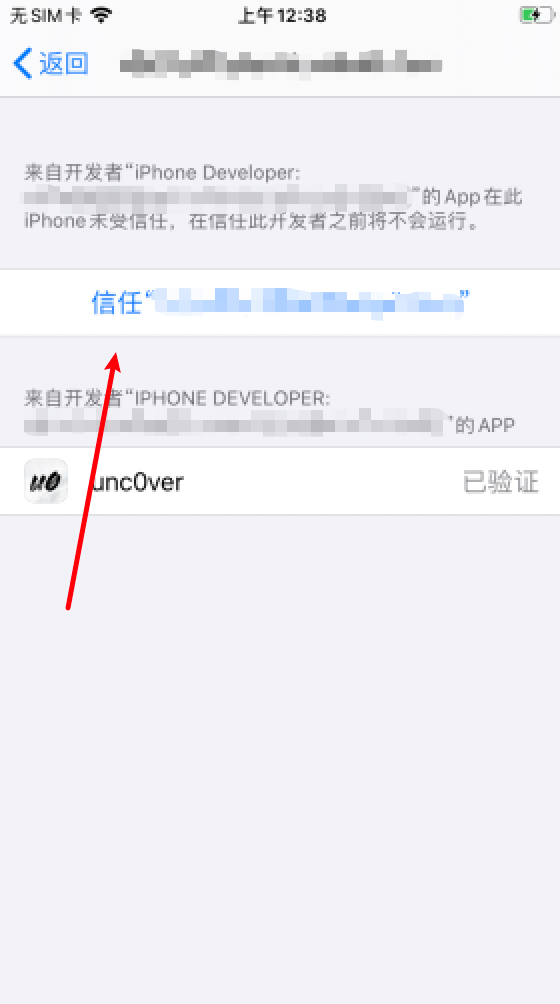
Click, trust, click again after the bullet window.
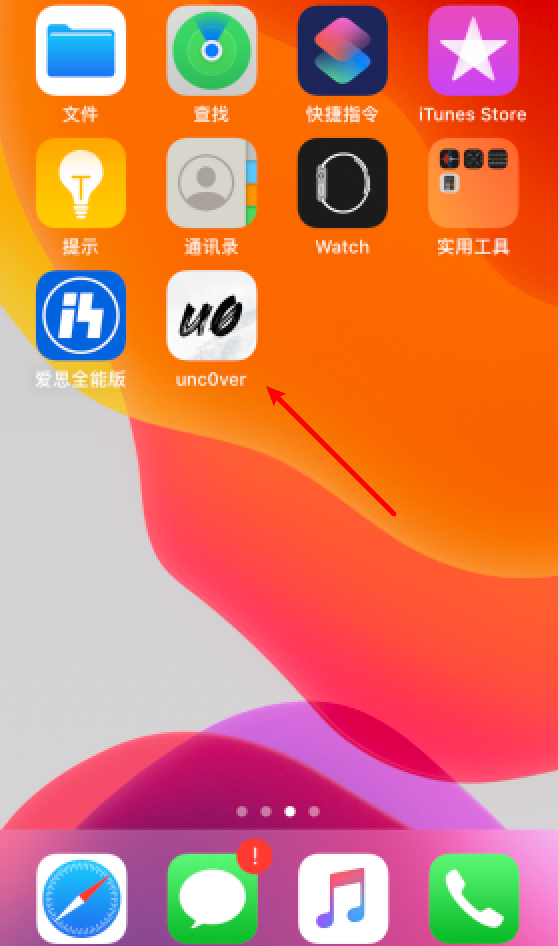
Then you can return to the desktop to open unc0ver for jailbreak.
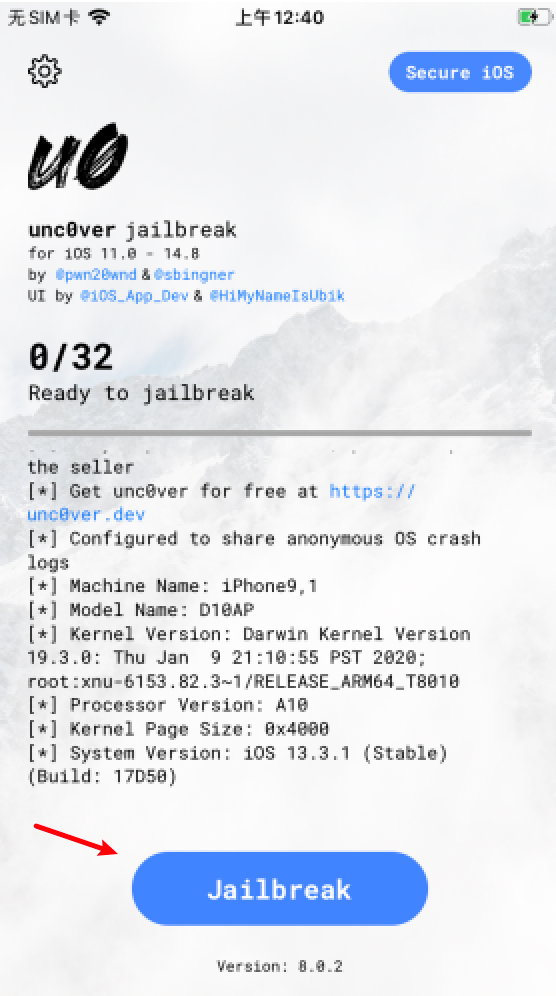
Click on Jailbreak to start jailbreak, unc0ver jailbreak with a low success rate, which requires several attempts, and progress tips to 29/32 are basically successful.
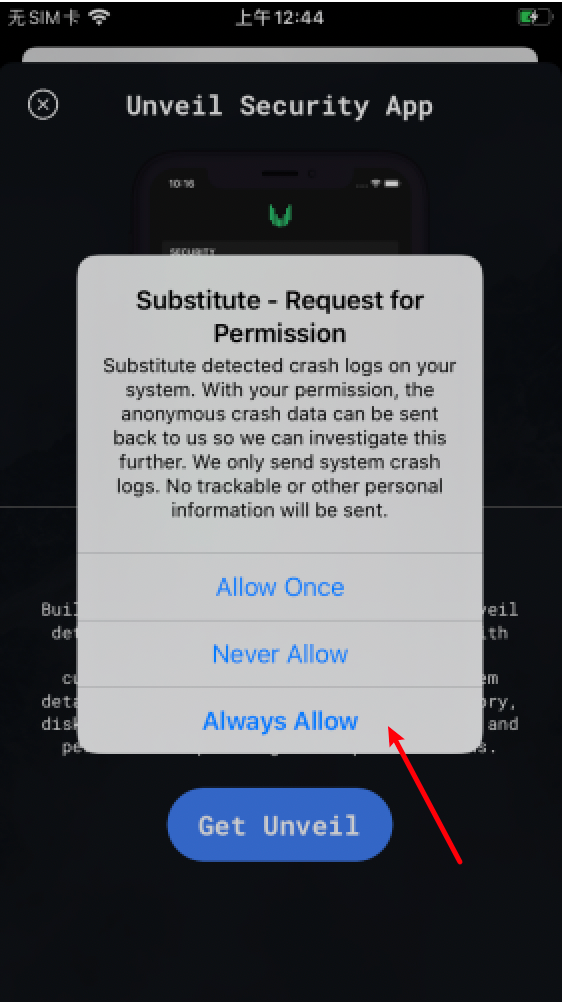
There is a hint to replace the crash log feedback.
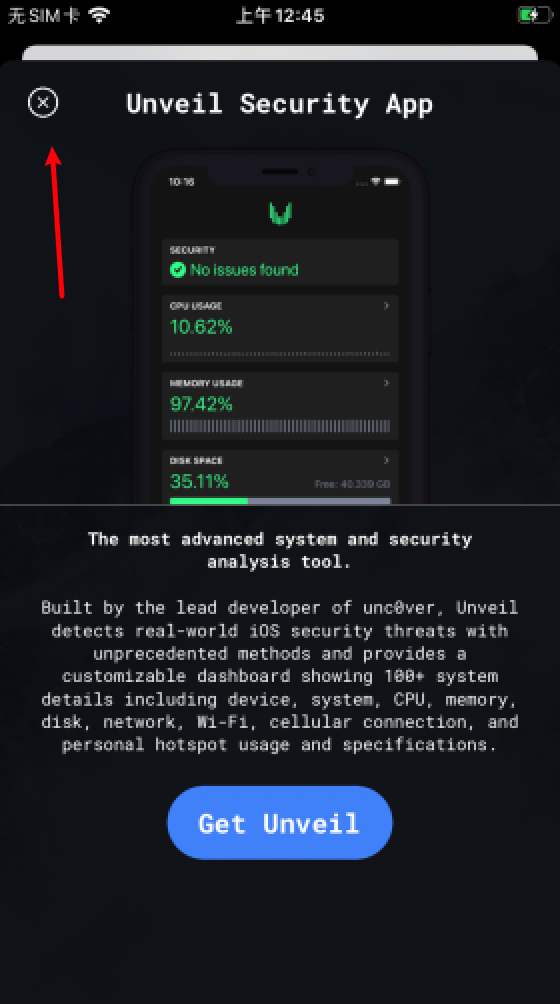
Close ad for app
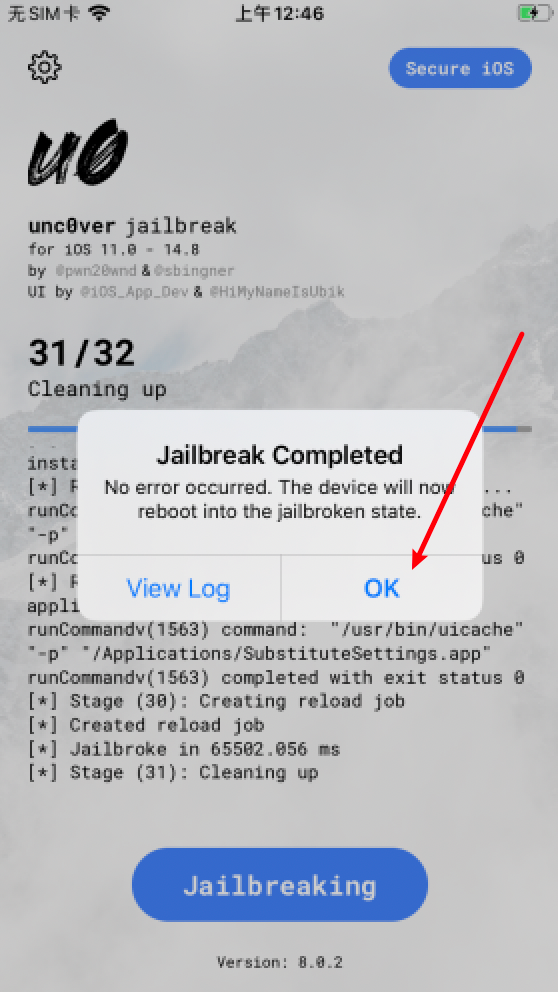
Seeing this tip is the completion of jailbreak, click OK for a moment, you can see a familiar Cydia icon on your cell phone desktop.
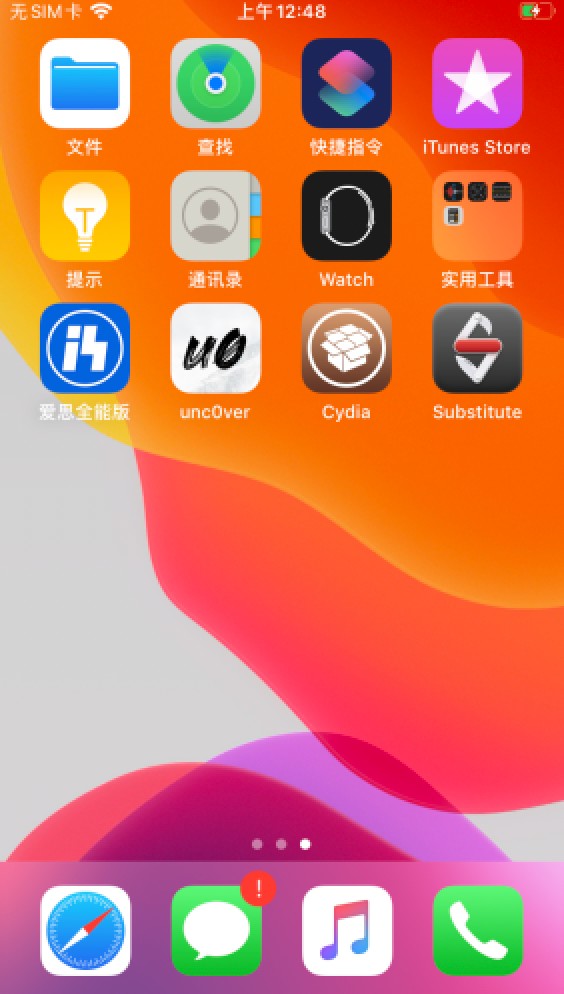
Notes:
(1) This jailbreak is an imperfect jailbreak, which must be redirected to jailbreak every time the device is restarted;
(2) Seven days later, unc0ver app certificates expire, unc0ver apps open will retreat and re-use Aeth's assistant jailbreak.
OpenCydiaThen, if it's a state-line equipment (the mainland Chinese cargo equipment with the model number CH at the end), there may be a Cydia without a network, which can be found in this article: -> How to Address mainland China device Without Network
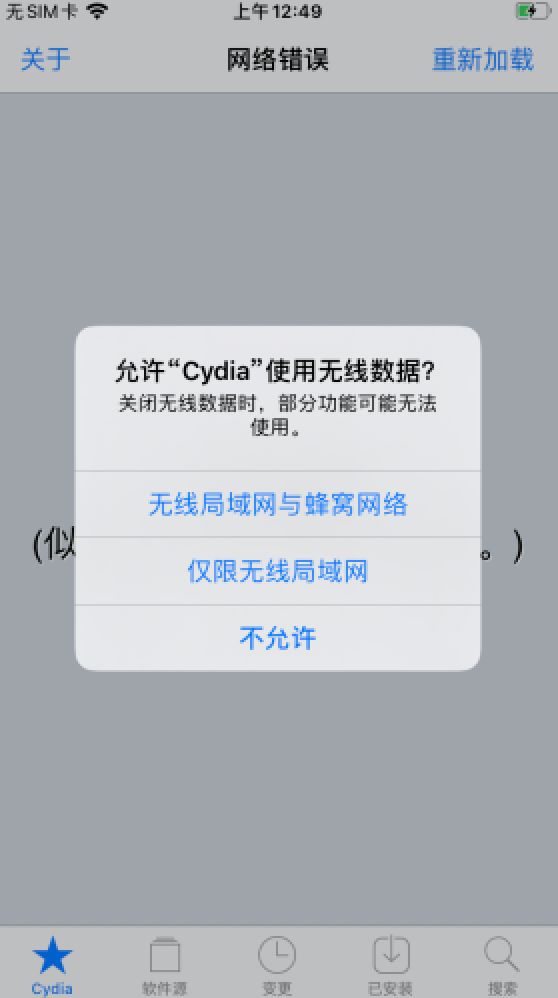
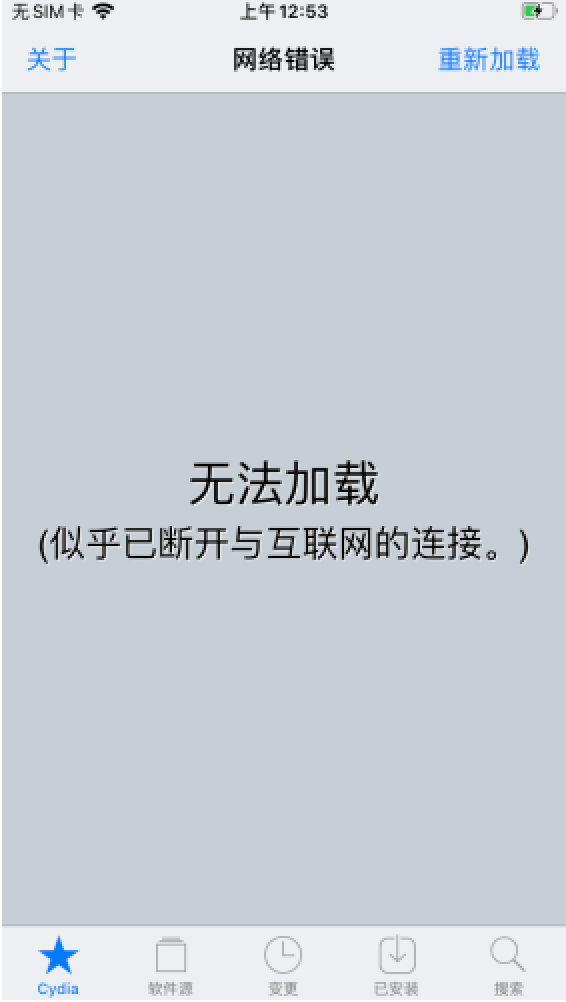
Click on the wireless local area network and the cellular network.
2、Install dependency packages
First time on Cedia, wait patiently for the bottom repository to be loaded.
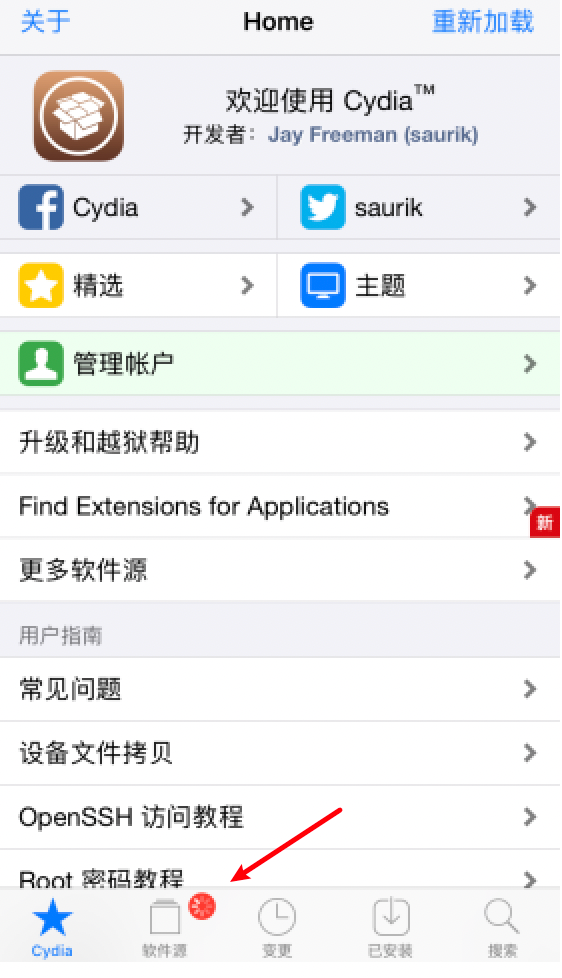
Waiting for all repository to be refreshed and updated
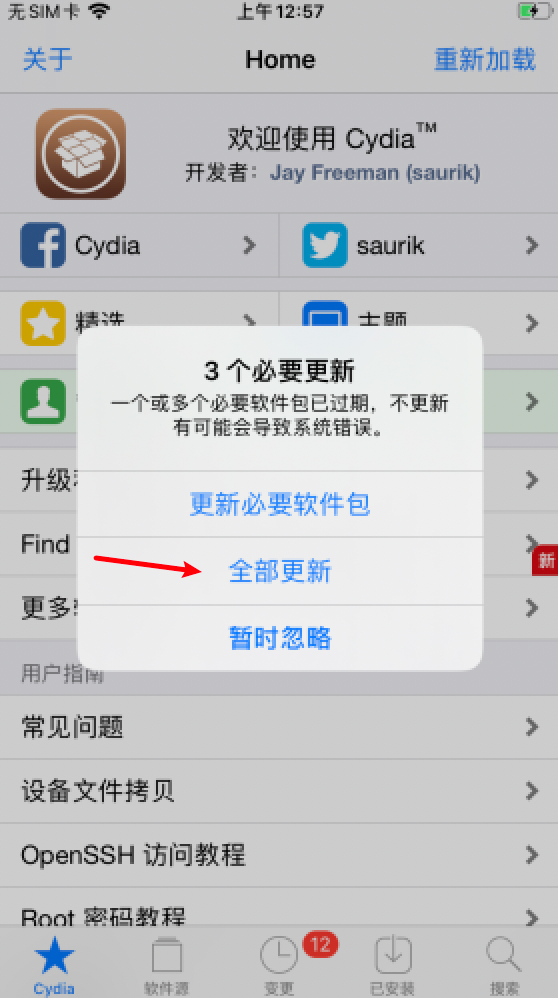
Click to Update All when an updated hint appears
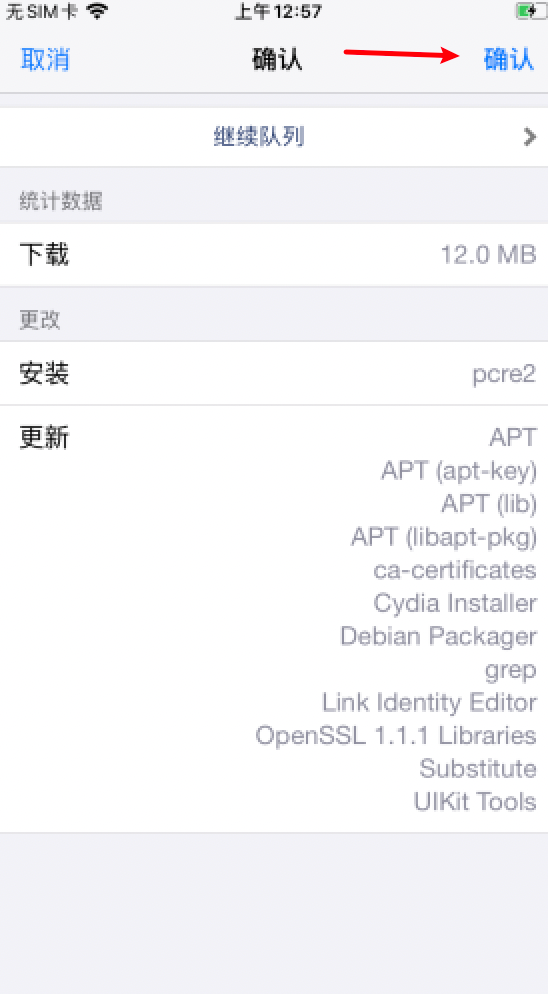
Click to confirm that all packages are updated (some parts of mainland China may be downloaded in red or yellow, magic can go online or try to change IP in other areas)
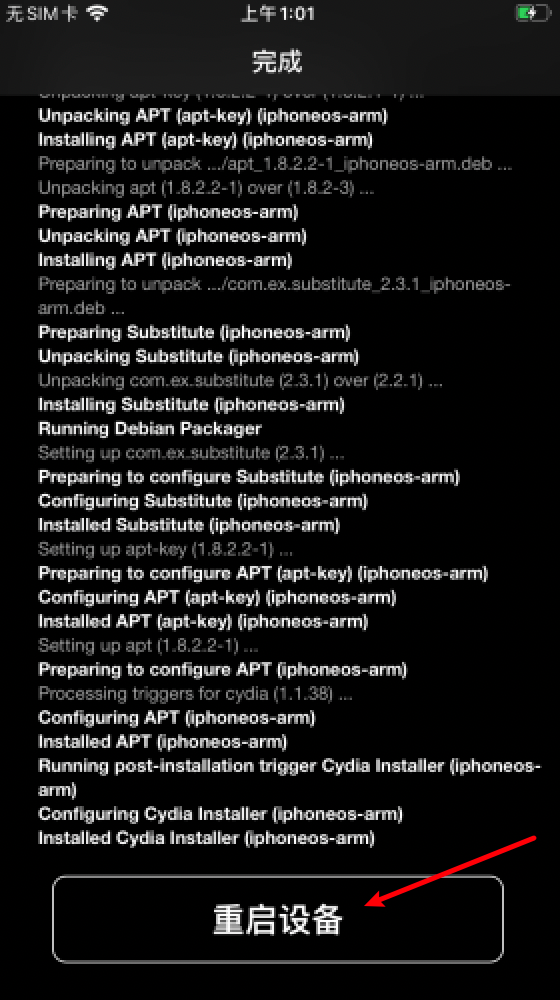
After the download is finished, click Restart the device, wait for the device to be restarted, re-open unc0ver again jailbreak, and then use jailbreak.
3、Installtweak
The first thing after jailbreak is to install tweak
tweak1: AFC2 (Aple File Conduit "2") for viewing jailbreak post-file system when connected to computer
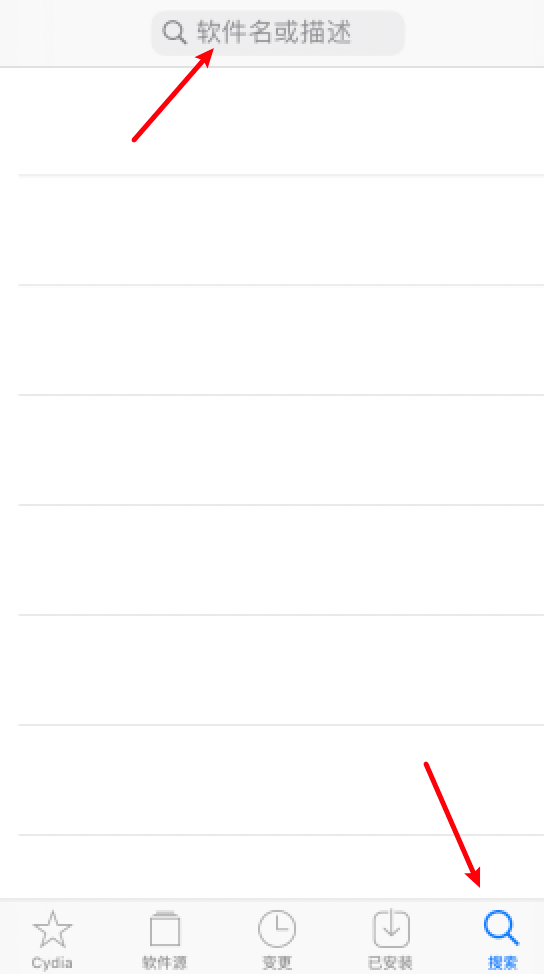
Open Cedia, click on the bottom right, enter afc2 in the search bar, and click on the bottom right.
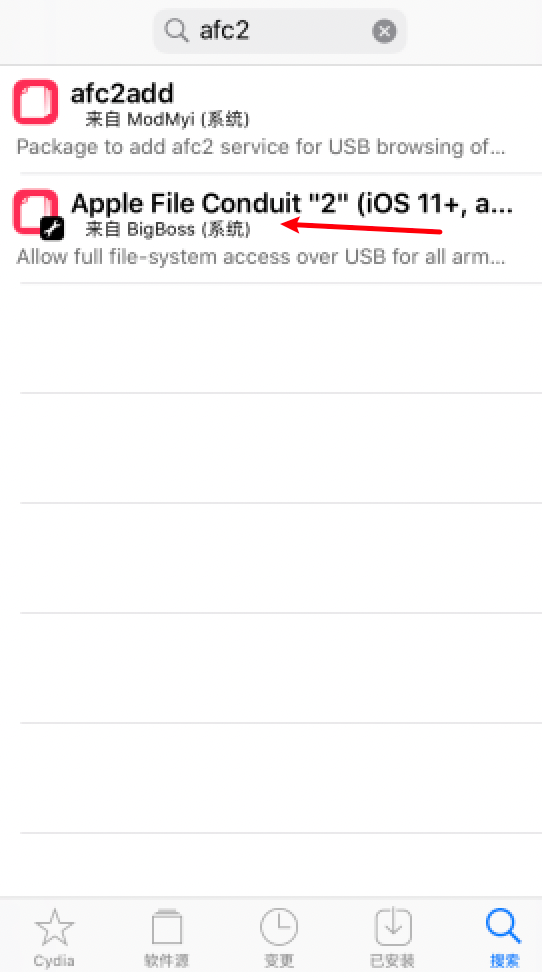
Two results. Choose.Apple File Conduit "2" This tweak
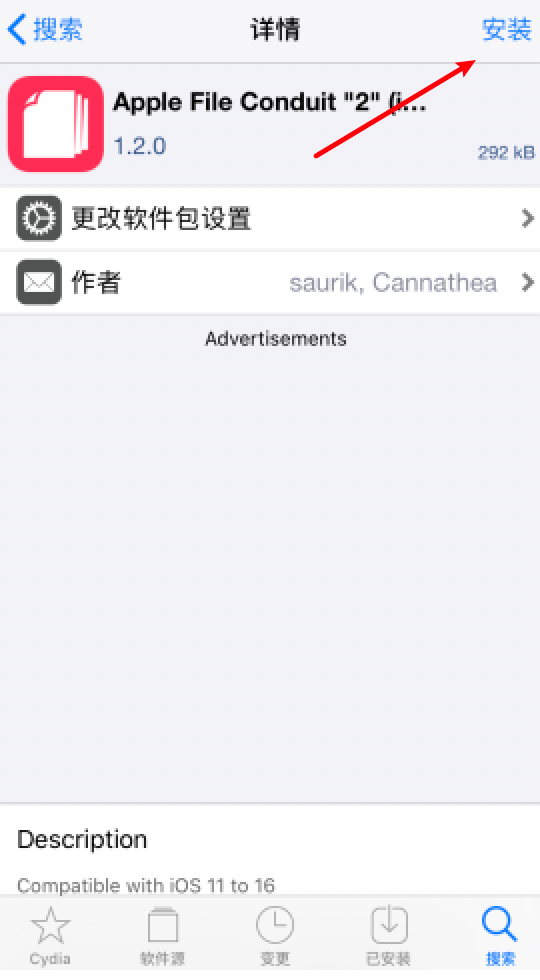
Click to Install
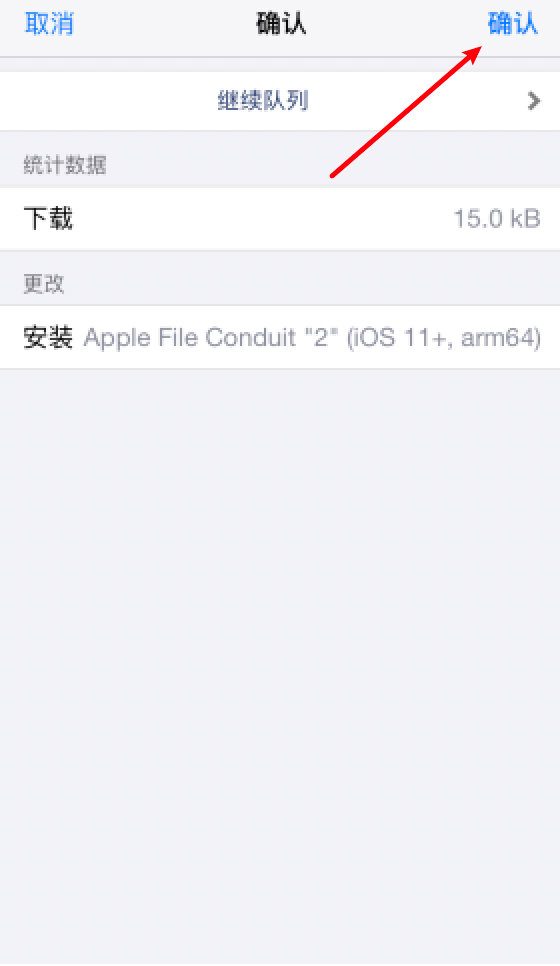
Click to confirm
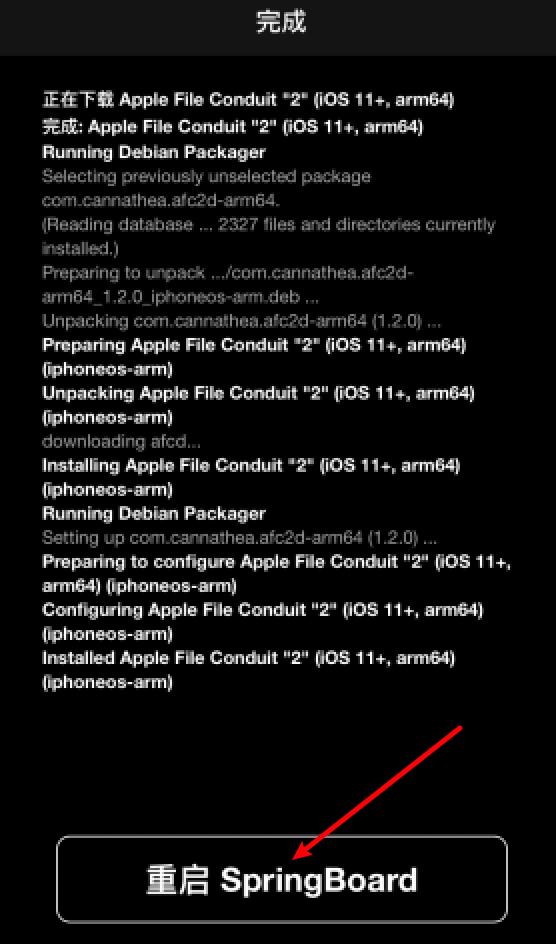
Waiting for installation to complete, restart SpringBoard. Then you can see jailbreak in Aeth's assistant.
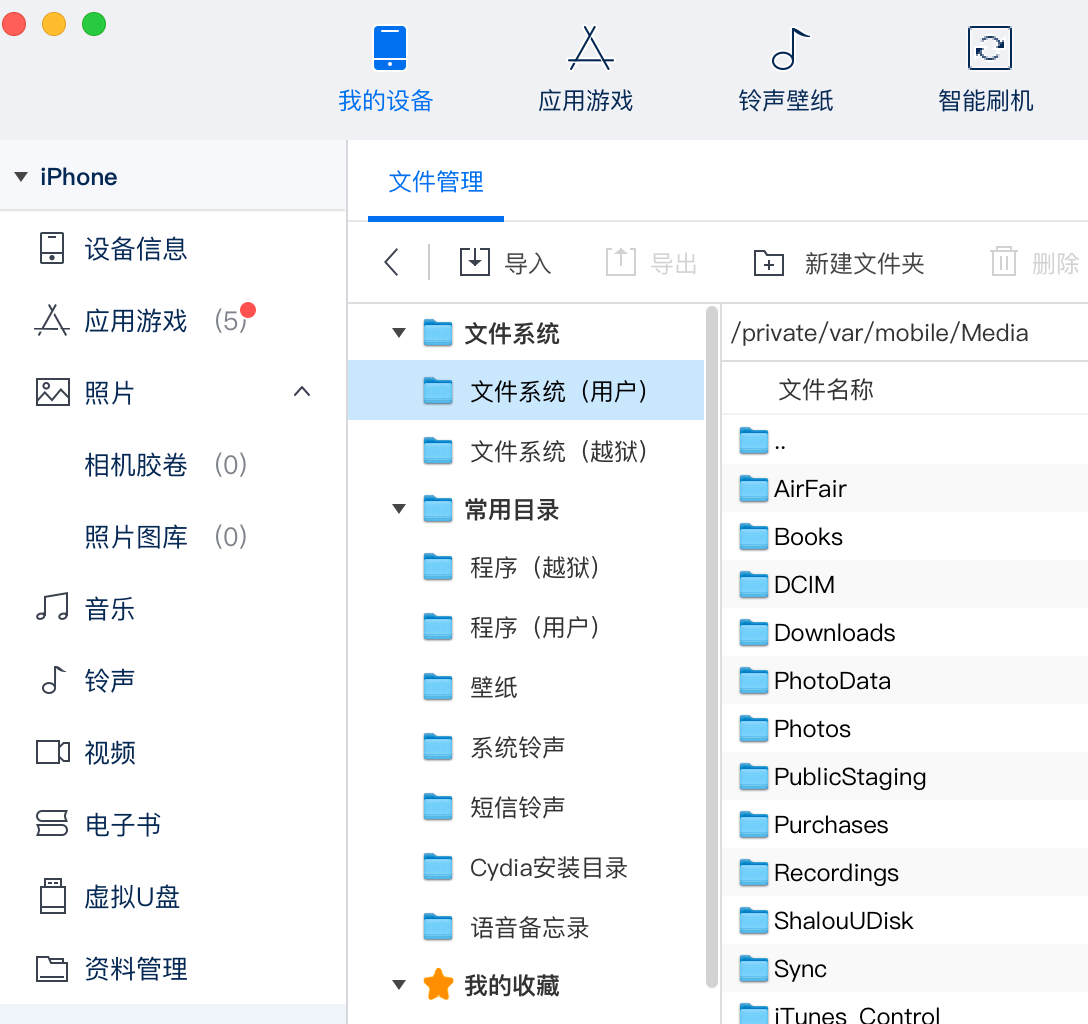
If Aeth's assistant does not see the jailbreak file system, re-plug the data lines.
Other jailbreak post-ZXZ"jailbreak"
4、Removejailbreak guide
How to remove unc0ver jailbreak:
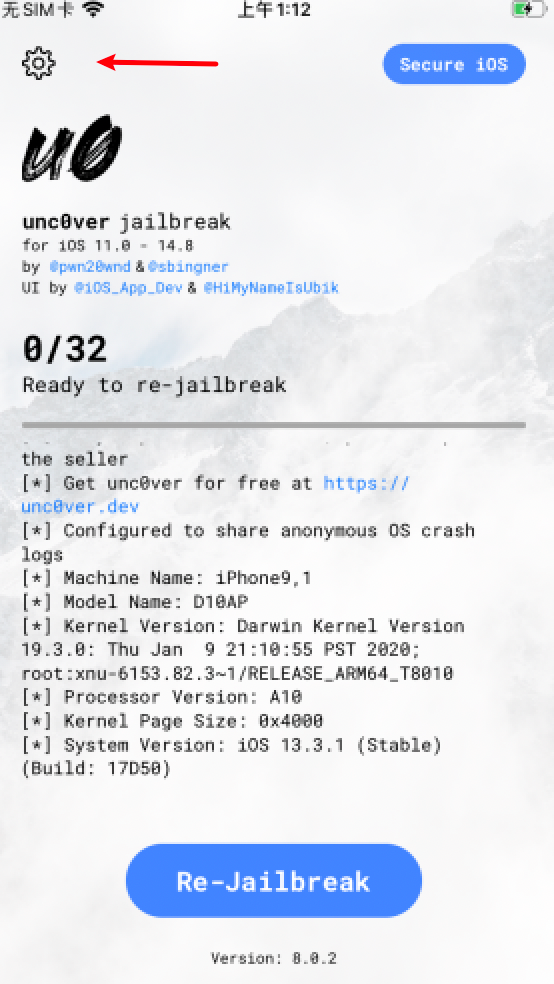
Open unc0ver, click the top left gear chart Indicators
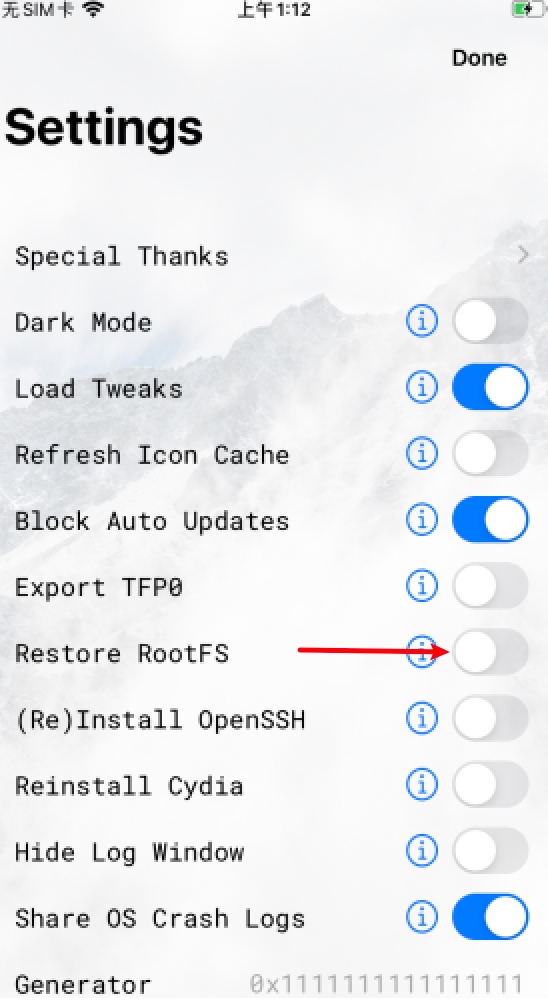
Open Restore RootFS Switch
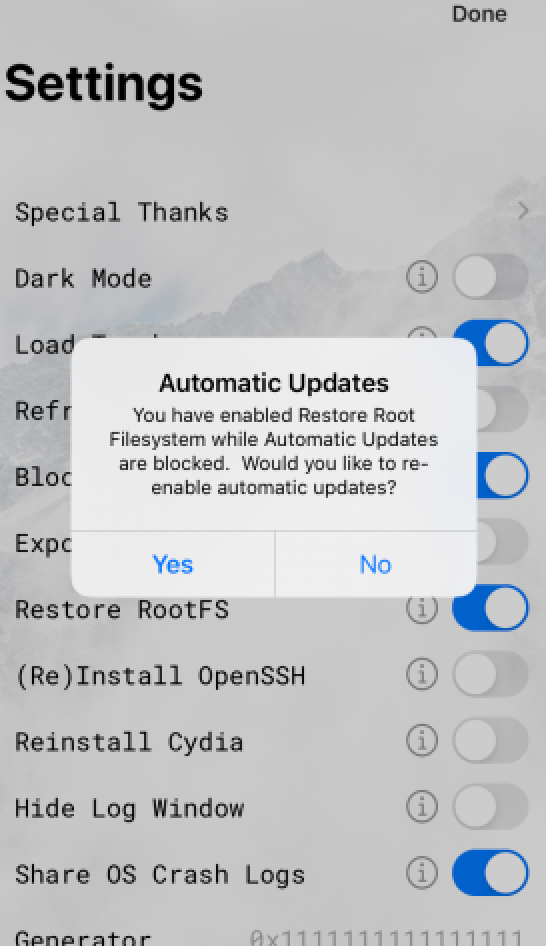
Select No, do not enable automatic updates and click on the top right doe
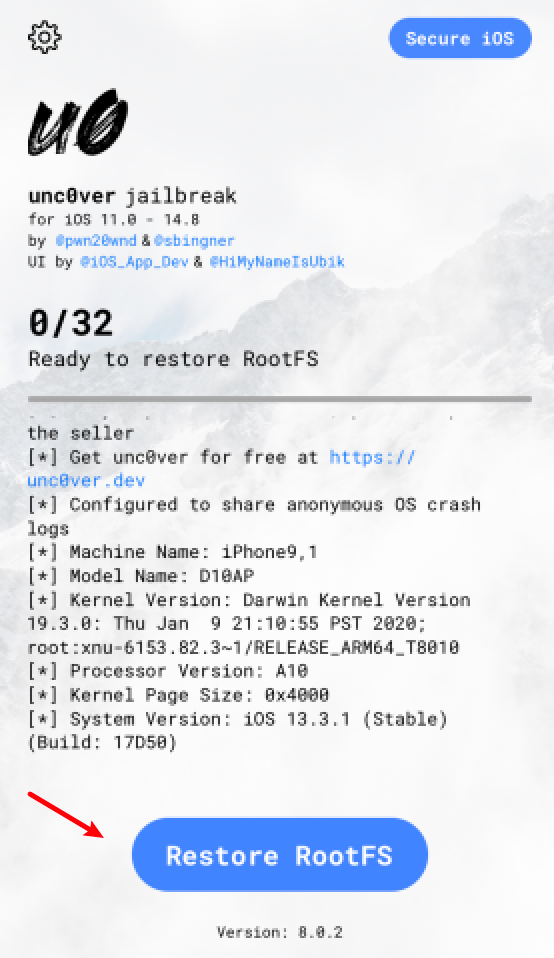
Click RootFS for a moment
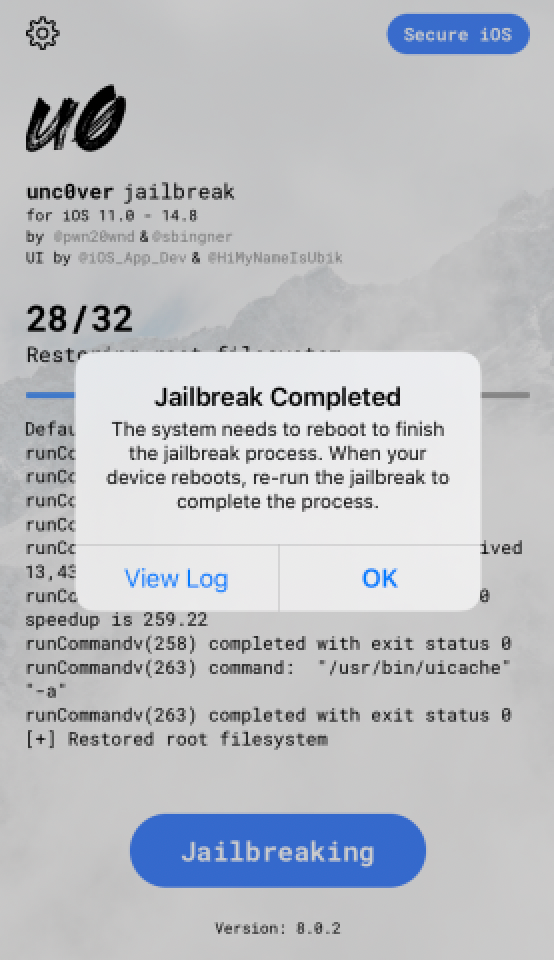
Click OK when you have finished the hint, automatically restart the device, without the Cydia icon on your cell phone desktop, i.e. returned to a state of non-jailbreak, which sometimes fails and can be tried several times.