
Jailbreak Tool Guides
checkra1n Jailbreak
checkra1n jailbreak guide

Official address:https://checkra.in/Copy
Support equipment: iPhone 5s - iPhone X
Support for iOS version: iOS 12 - 14.8.1
jailbreak, please make sure the device is not unlocked and please turn off my iPhone to prevent all accidents.
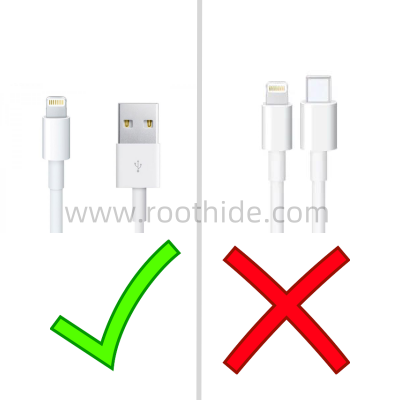
Use USB-A (the old apple data line) for jailbreak, and USB-C cannot jailbreak.
The text contains the following (clickable links jump to corresponding content):
2、jailbreak guide;
3、Install necessary dependency packages
jailbreak tool download:
Other Organiser
Checkra1n jailbreak tool download
2, jailbreak guide:
WindowsCheckra1n jailbreak guide
MacOS checkra1n jailbreak guide
The example here is iPhone 7 iOS 13.3.1.
Data line connector, open checkra1n,
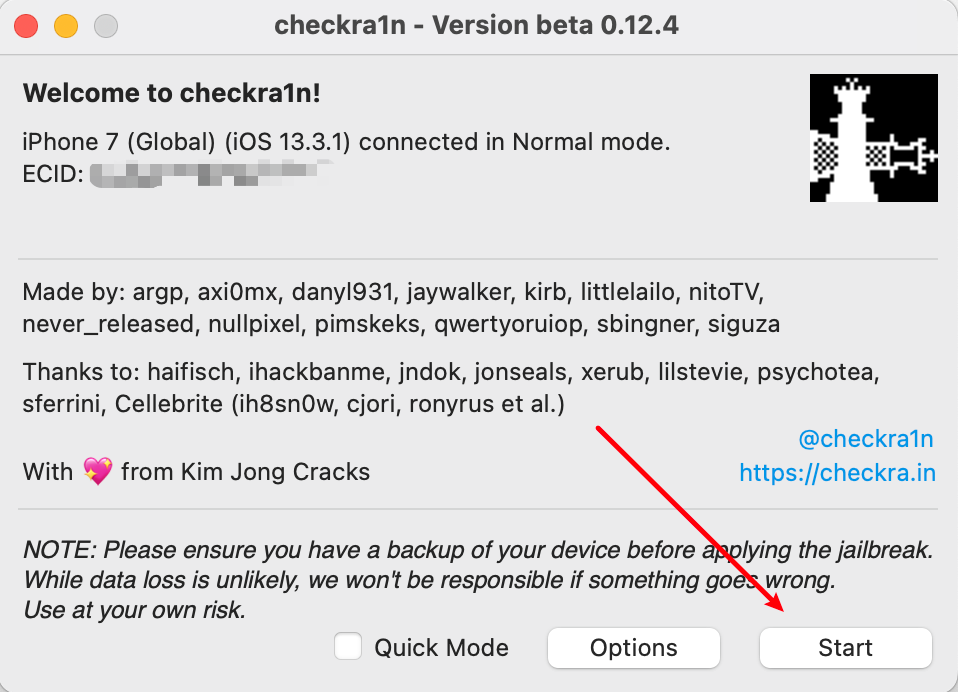
Click on Star
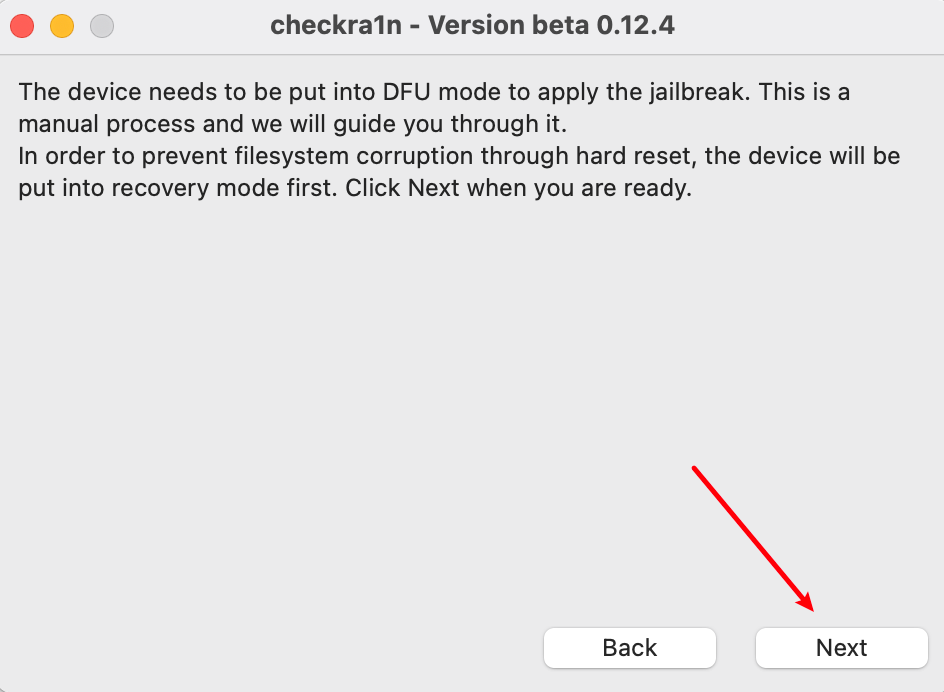
Click Next
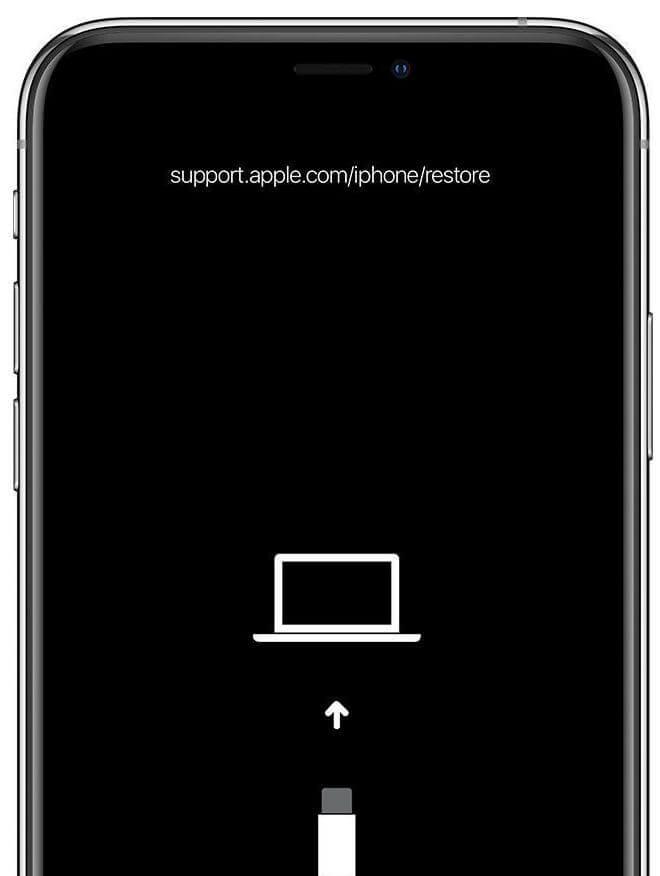
At this point, the device will be restarted and put into recovery mode (a data line connection computer sign will be displayed on the mobile phone, as illustrated below).
Put your finger on the volume - and on the key (do not press first),
(HoME keys and opening keys if there is a physical HOME key, e.g. iPhone 5s, 6s, 6s, s etc.)
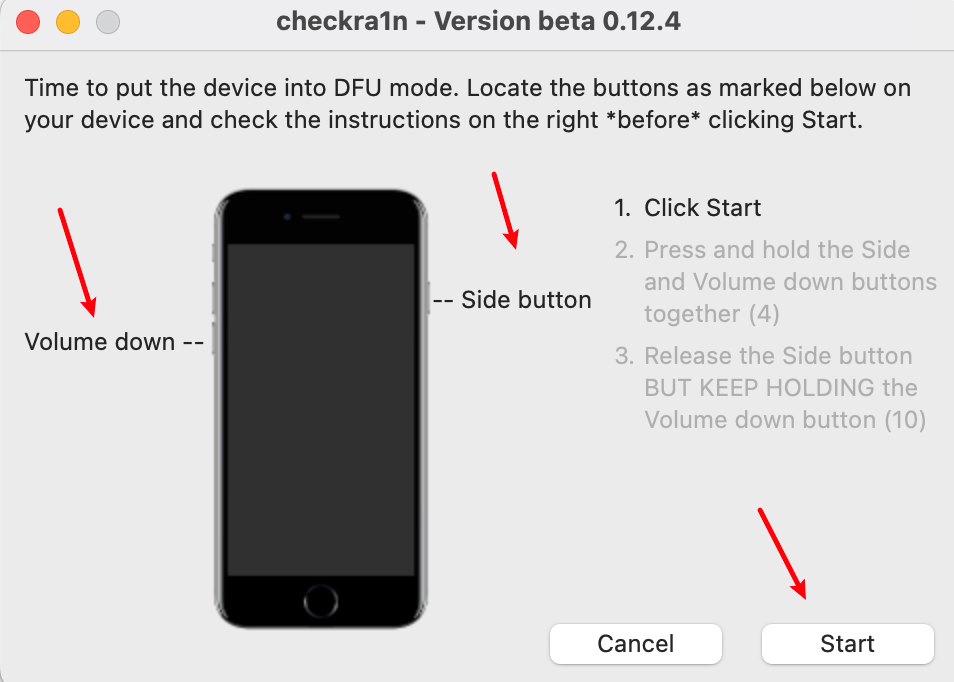
Click on Start to read a second.
First, you hold down the volume - and open the key for four seconds.
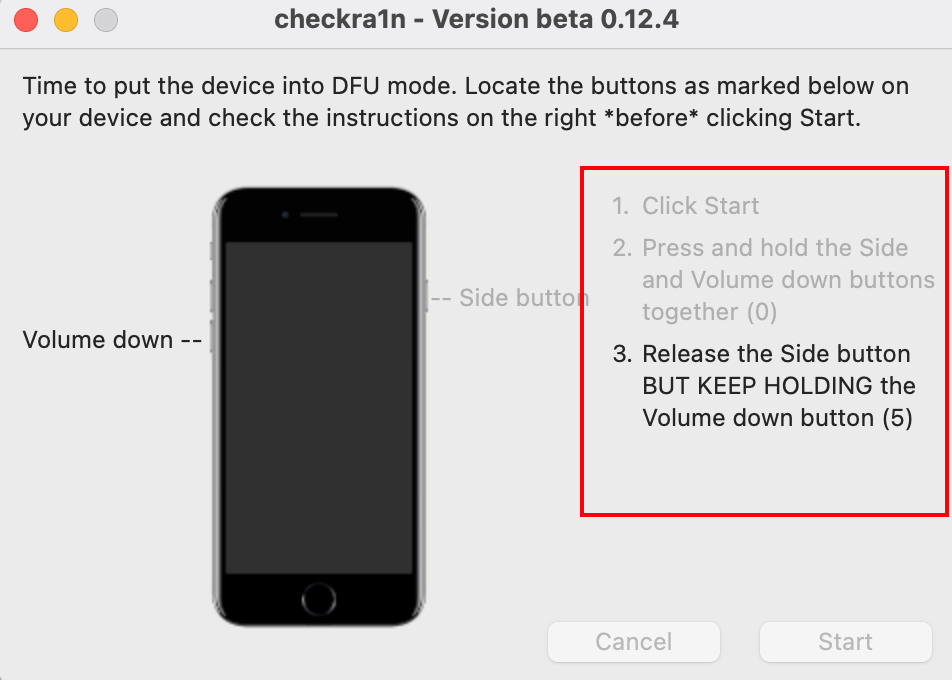
Unlock the key again and keep the volume down -- keep it on.
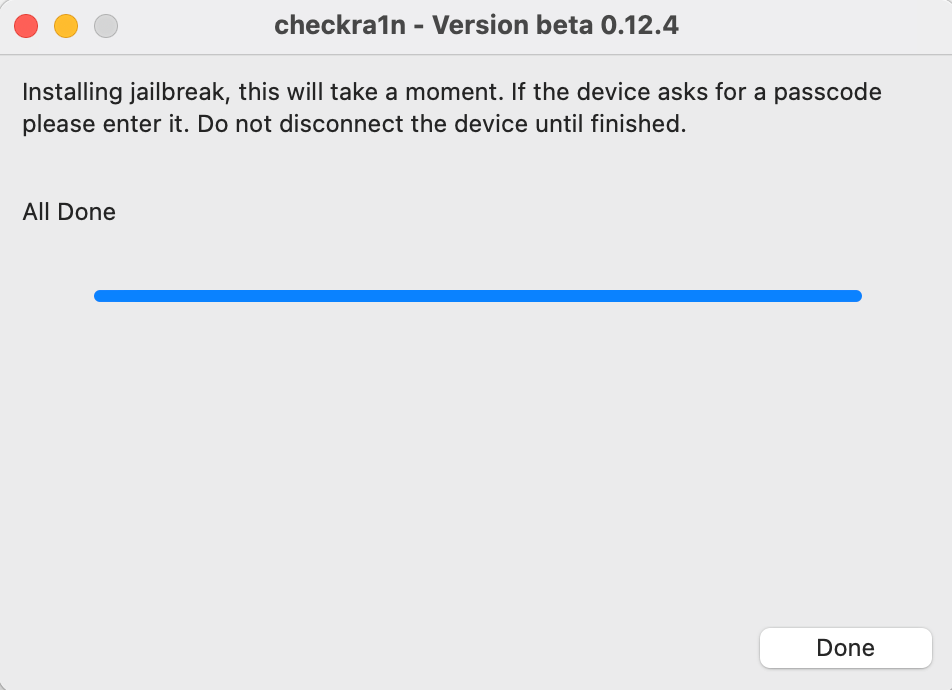
Waiting for about 10 seconds to enter DFU mode to see jailbreak progress strips
jailbreak.
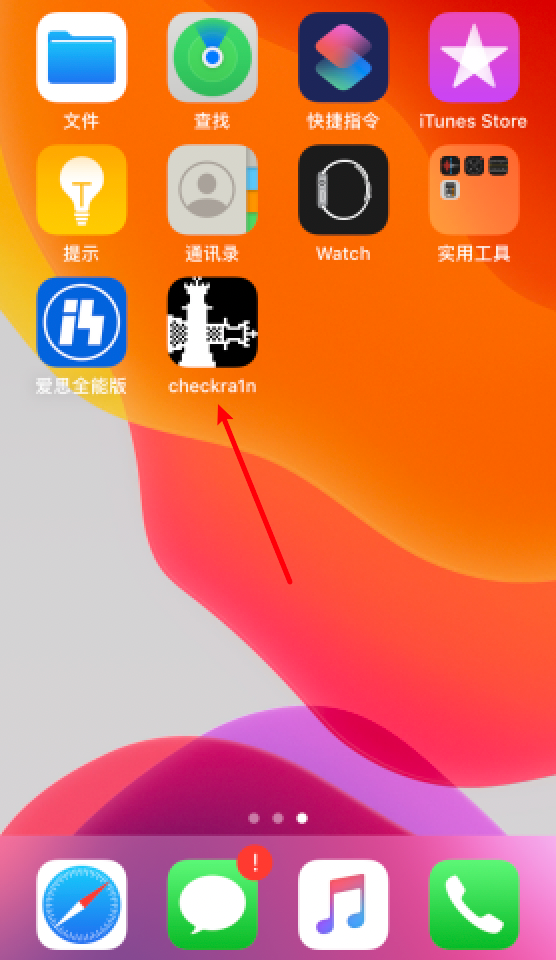
A checkra1n icon appears on the desktop, click checkra1n
Waiting for checkra1n loading of cydia
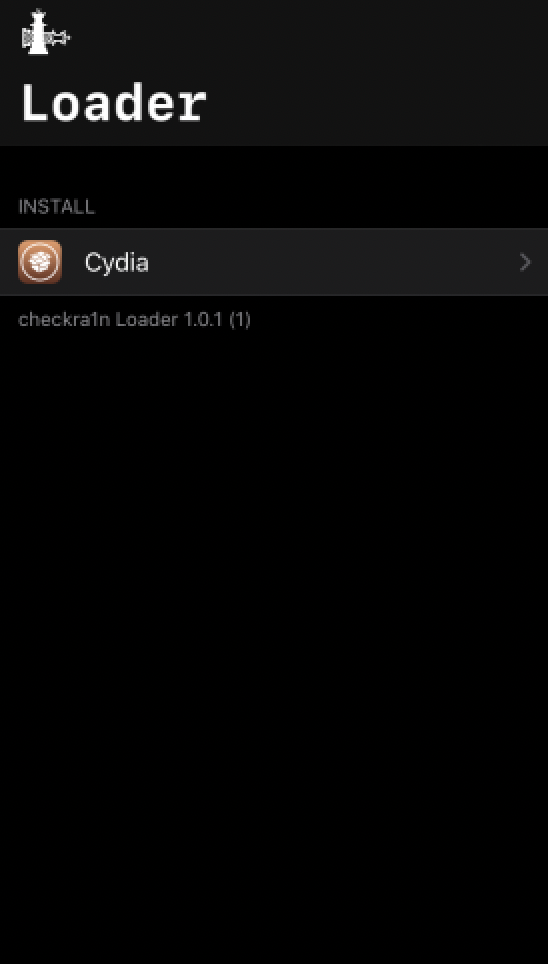
After the cydia icon appears, click to install cydia, and keep the network open, some parts of mainland China that can't be loaded for a long time.
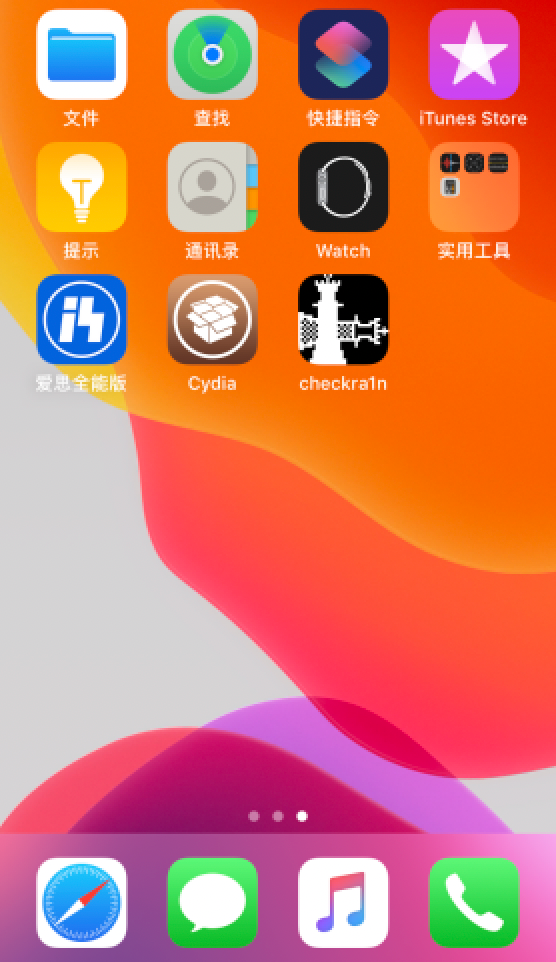
Once you have installed Cydia, Checkra1n will automatically exit and return to the desktop, which now has a familiar Cydia icon.
Note: This method is imperfect jailbreak, and each restart must be re-directed using checkra1n to guide jailbreak.
If Cydia opens up, if it's a national line of equipment (the Chinese mainland cargo equipment with the model number CH at the end), there's a possibility that Cydia has no network.How to Address mainland China device Without Networks
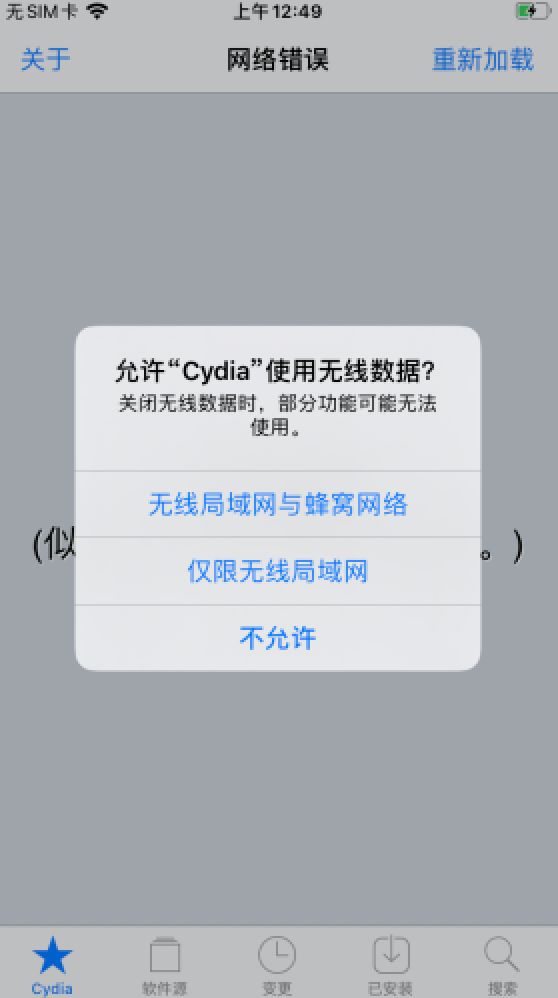
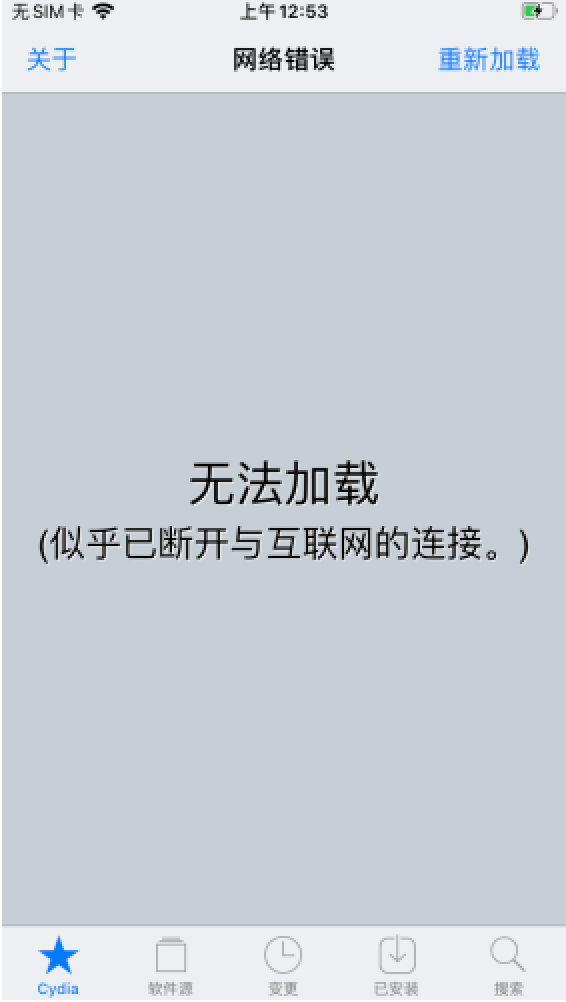
Click on the Wireless Local Area Network and the Beecom to agree to Cedia's use of the network, double-click the HOME to push out the Cydia backstage, open the Cydia again, and then use Cydia.
3. Installation of necessary dependency packages:
First run, Cedia, wait patiently for the bottom ZXQTERM-8QXZ load to be loaded.
There's a red circle at the bottom that's on the load, and some mainland China's network is not good enough to consider magic.
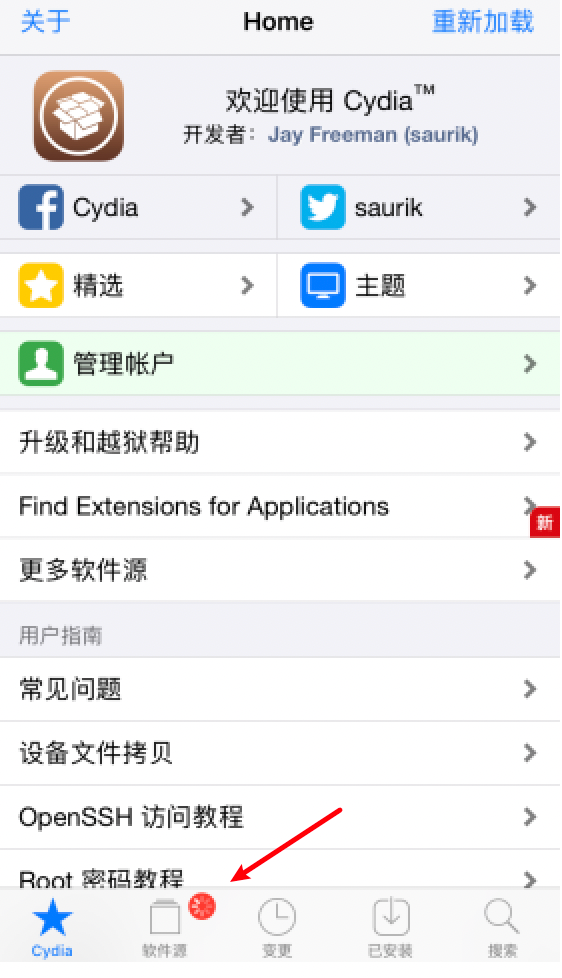
Waiting for all repository to be refreshed and updated
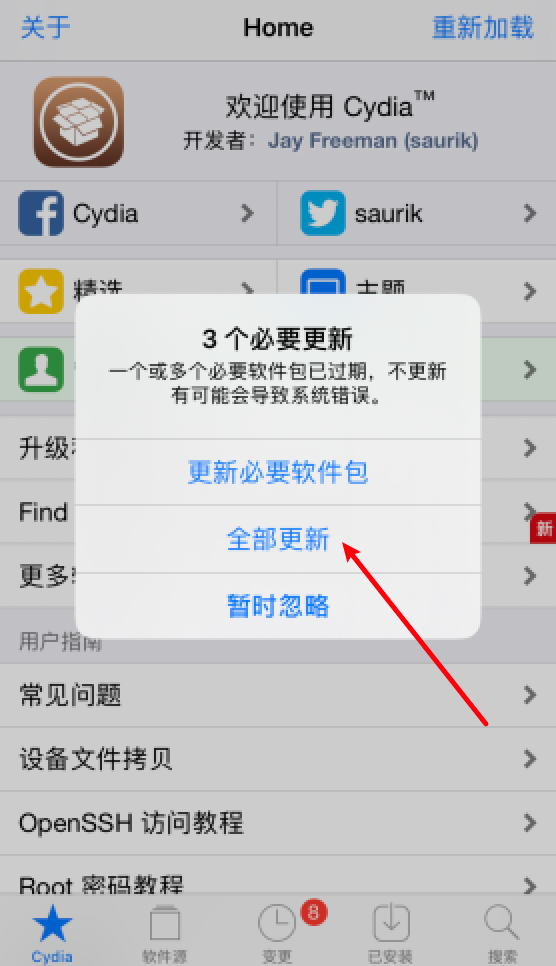
Click to Update All when an updated hint appears
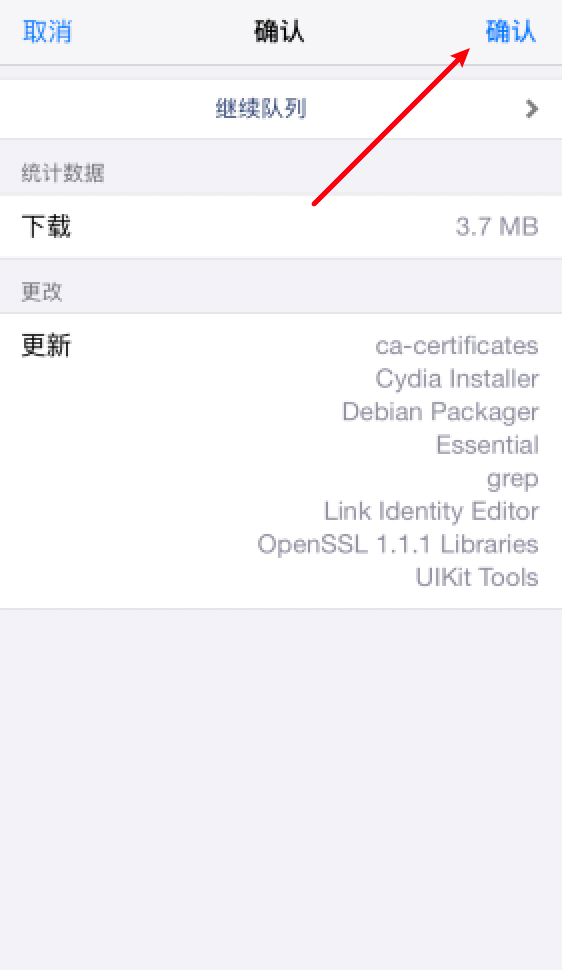
Click to confirm that all packages are updated (some parts of mainland China may be downloaded in red or yellow, magic can go online or try to change IP in other areas)
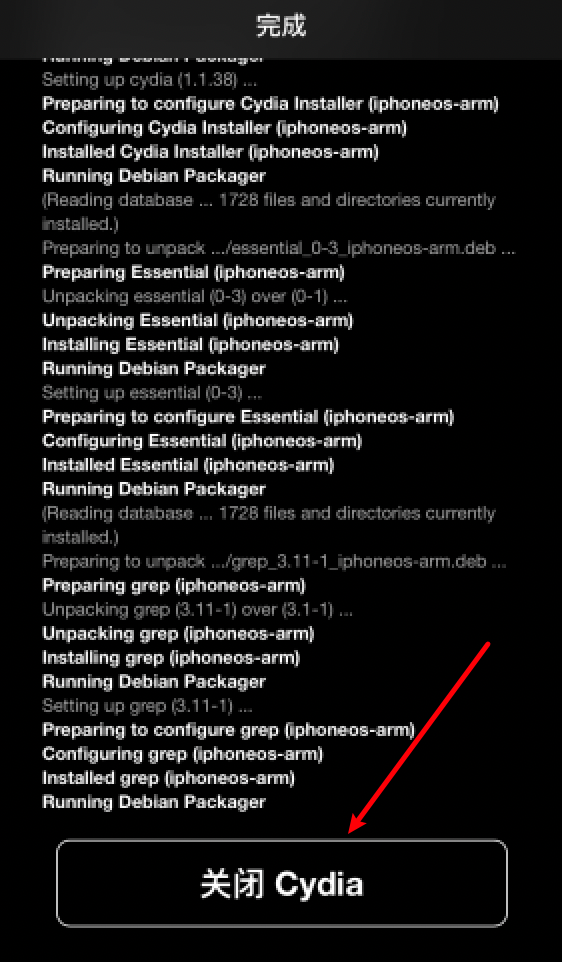
After the download is finished, click off Cedia, and you can use the jailbreak device.
tweak:
The first thing after jailbreak is to install tweak
tweak1: AFC2 (Aple File Conduit "2") for viewing jailbreak post-file system when connected to computer
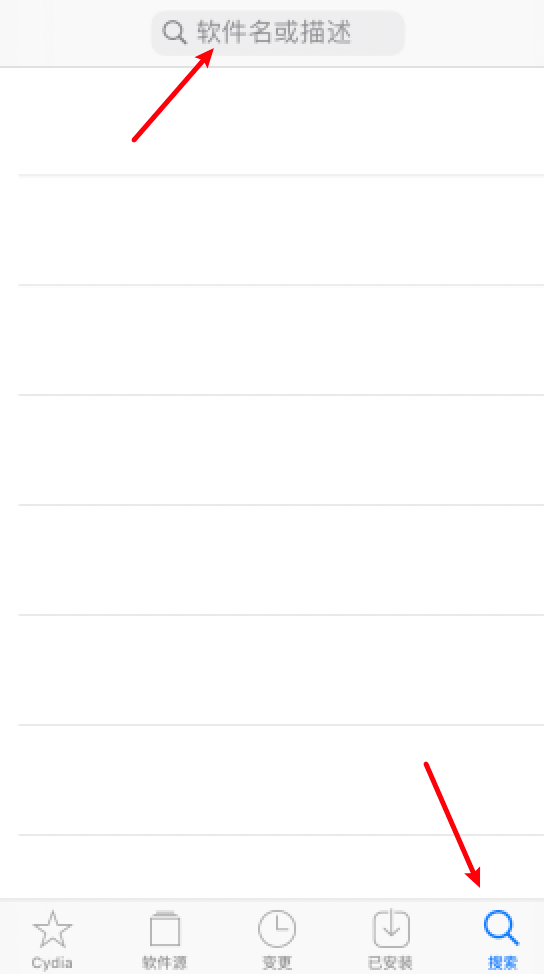
Open Cedia, click on the bottom right, enter afc2 in the search bar, and click on the bottom right.
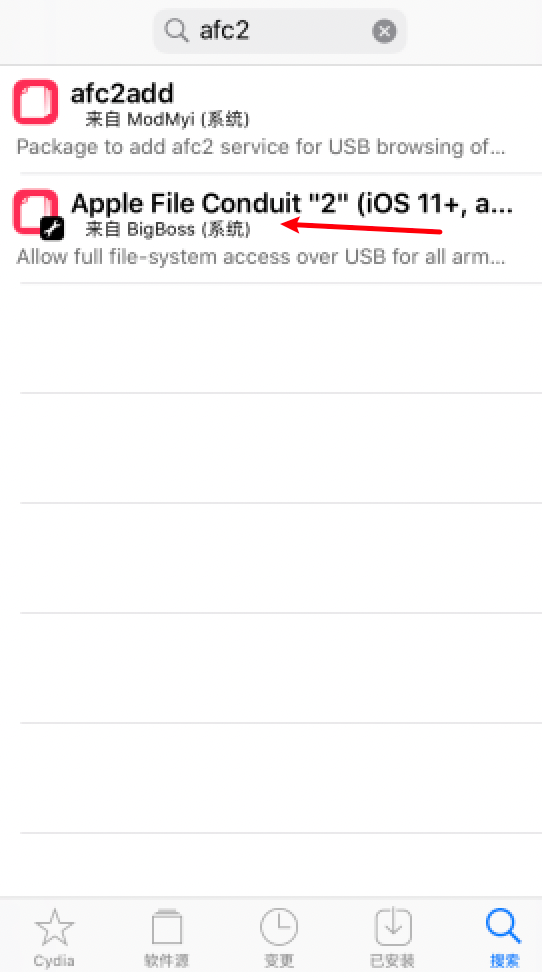
Two results. Choose.Apple File Conduit "2" This tweak
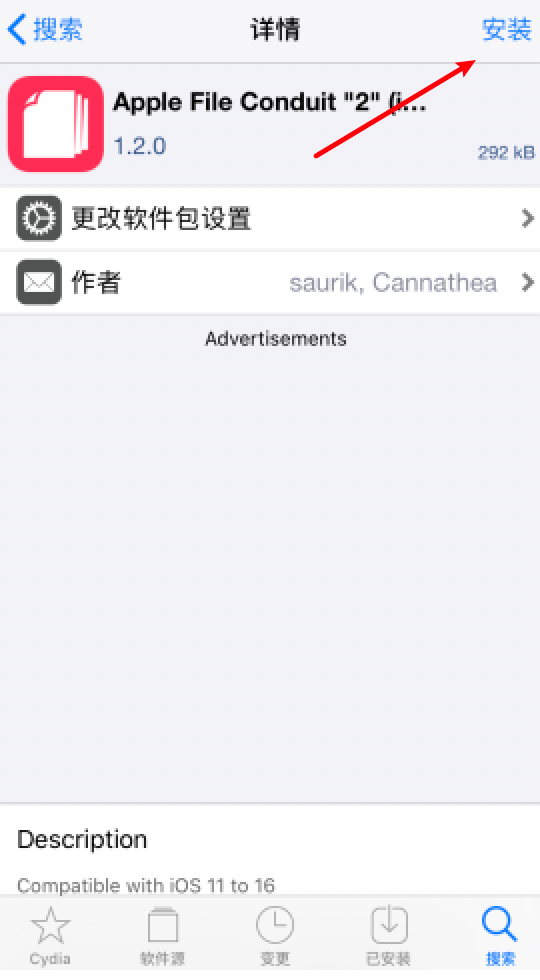
Click to Install
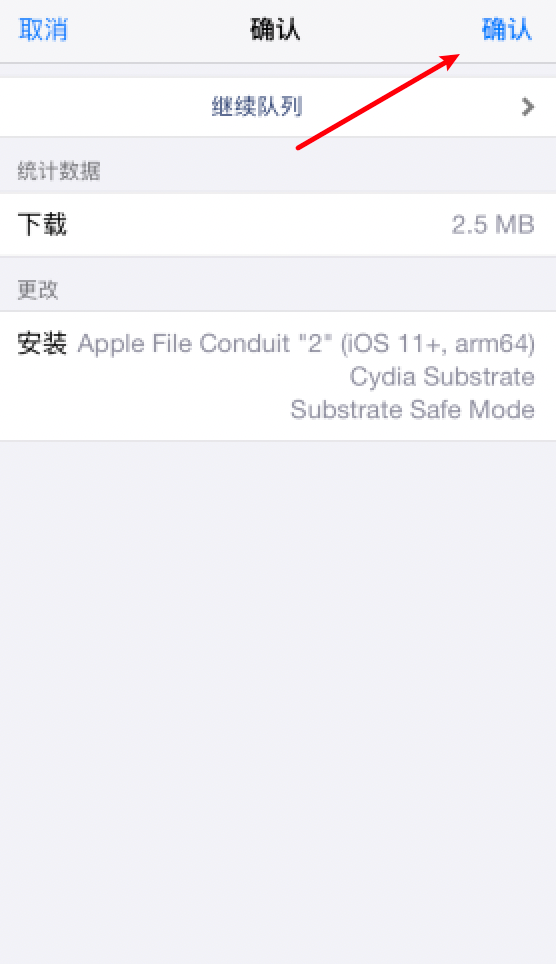
Click to confirm and install two at once.Substrate Baseboard
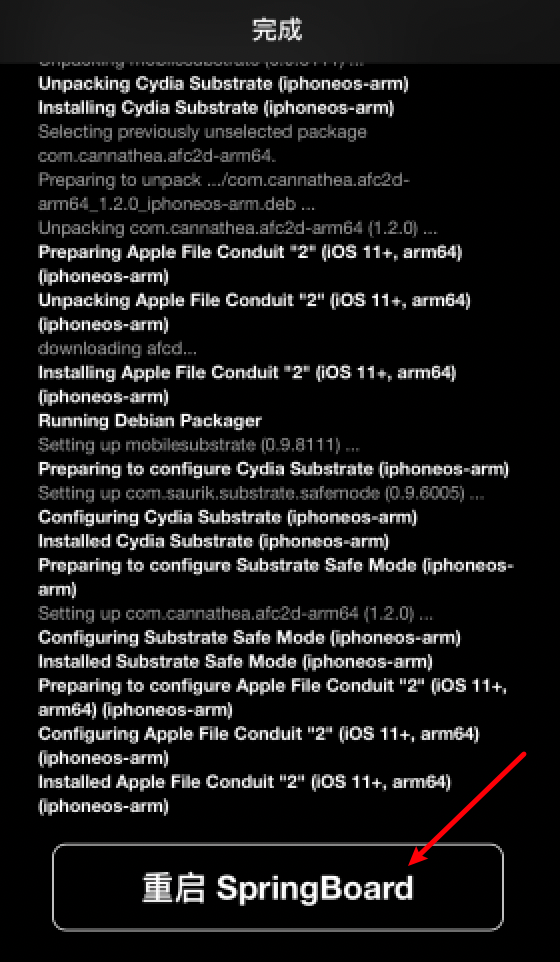
Waiting for installation to complete, restart SpringBoard. Then you can see jailbreak in Aeth's assistant.
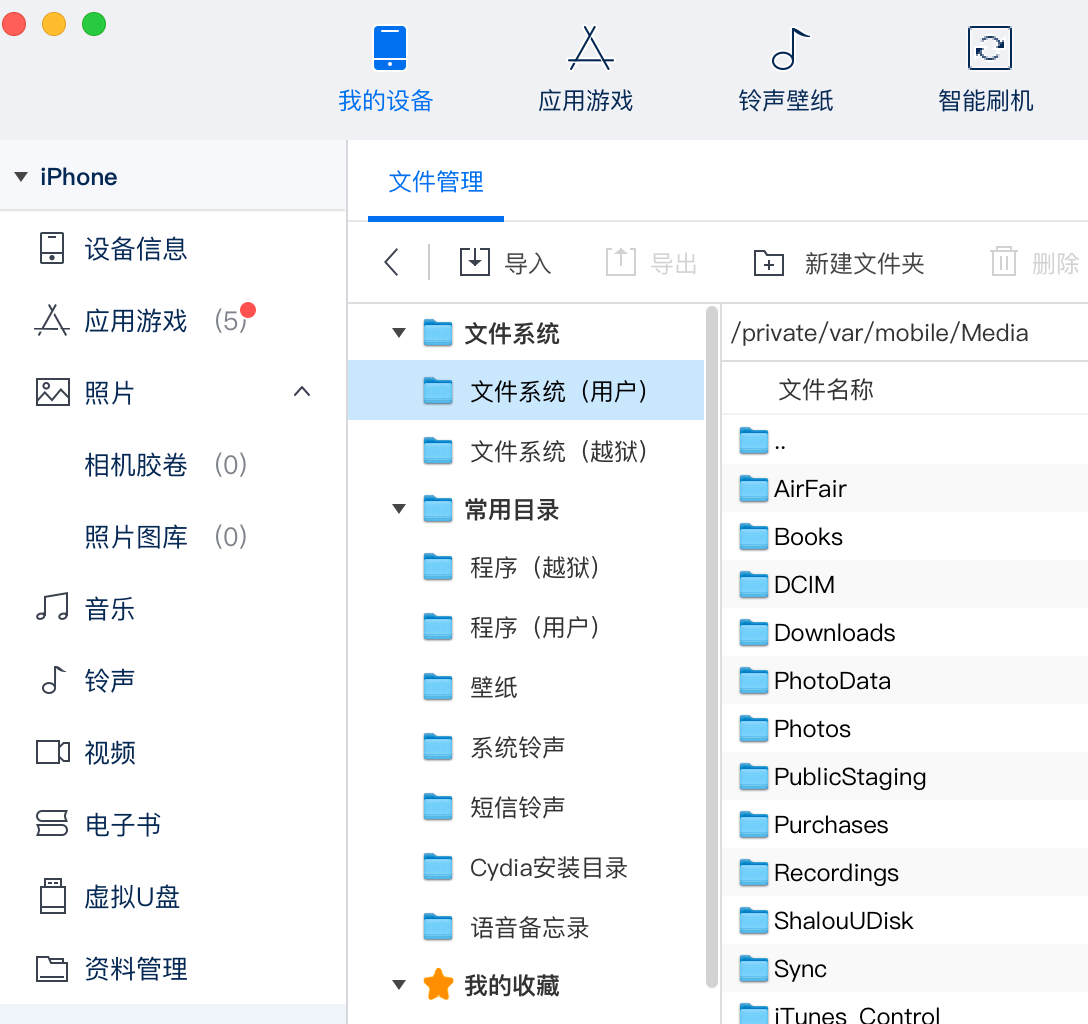
If Aeth's assistant does not see the jailbreak file system, re-plug the data lines.
Other jailbreak post-ZXZ"jailbreak"
5. Remove jailbreak guide::
How to remove checkra1n jailbreak:
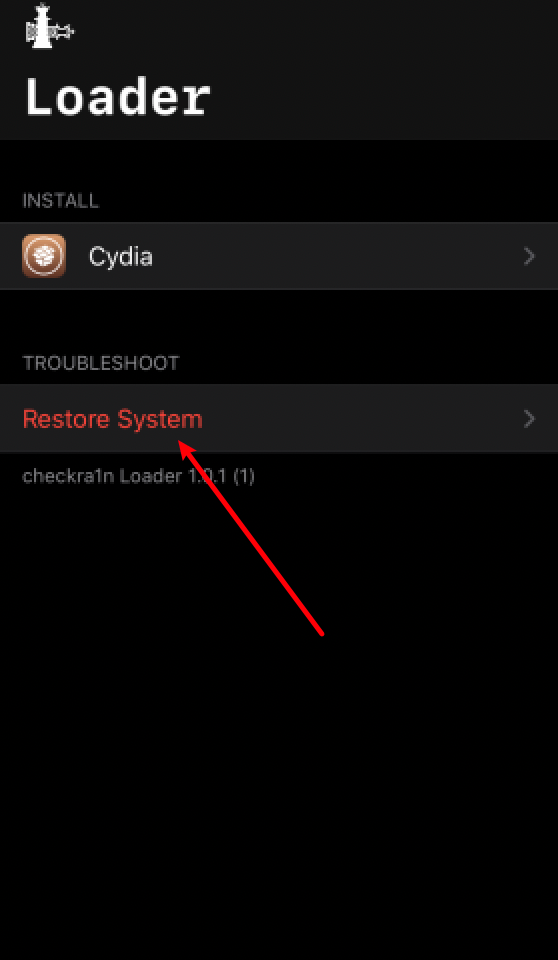
Open checkra1n, click Restore System
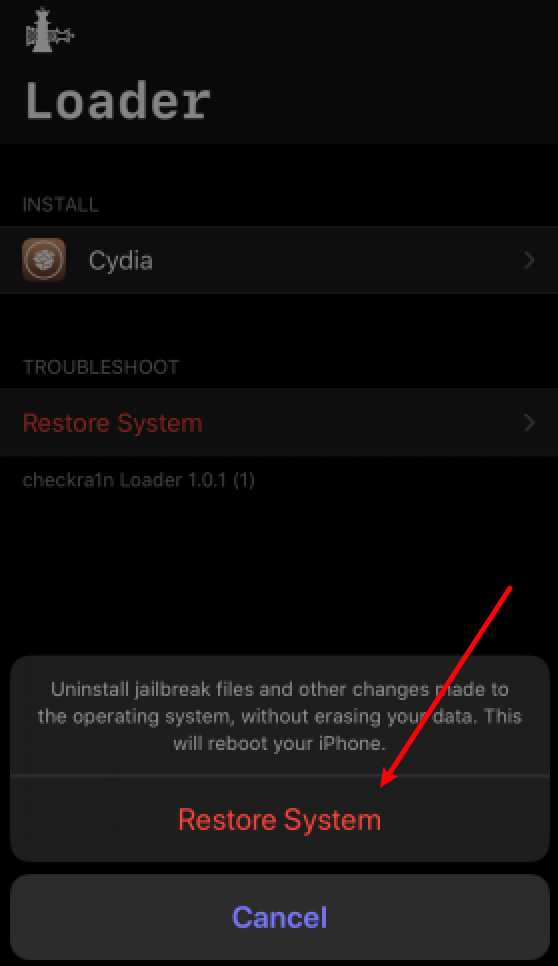
Click Restore System, wait a moment, and when the device is automatically restarted, the desktop without the Cydia icon is successful in removing jailbreak.
Note: Sometimes there is no checkra1n icon on the desktop or a hint to Time Out, re-activate jailbreak and remove jailbreak.