Jailbreak Tool Guides
Taurine Jailbreak
Taurine jailbreak guide

Official address:https://taurine.app/
Support equipment: all device models types that match the version
Support for iOS version: iOS 14.0 - iOS 14.8.1
jailbreak, please make sure the device is not unlocked and please turn off my iPhone to prevent all accidents.
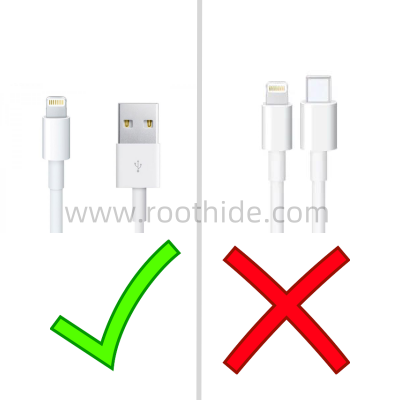
Use USB-A (the old apple data line) for jailbreak, and USB-C cannot jailbreak.
It contains the following:
1、jailbreak guide:
An example is the iPhone 7 iOS 144.1 system.
jailbreak is recommended for Aeth's assistant.
Ace's assistant online address:https://www.i4.cn/Copy
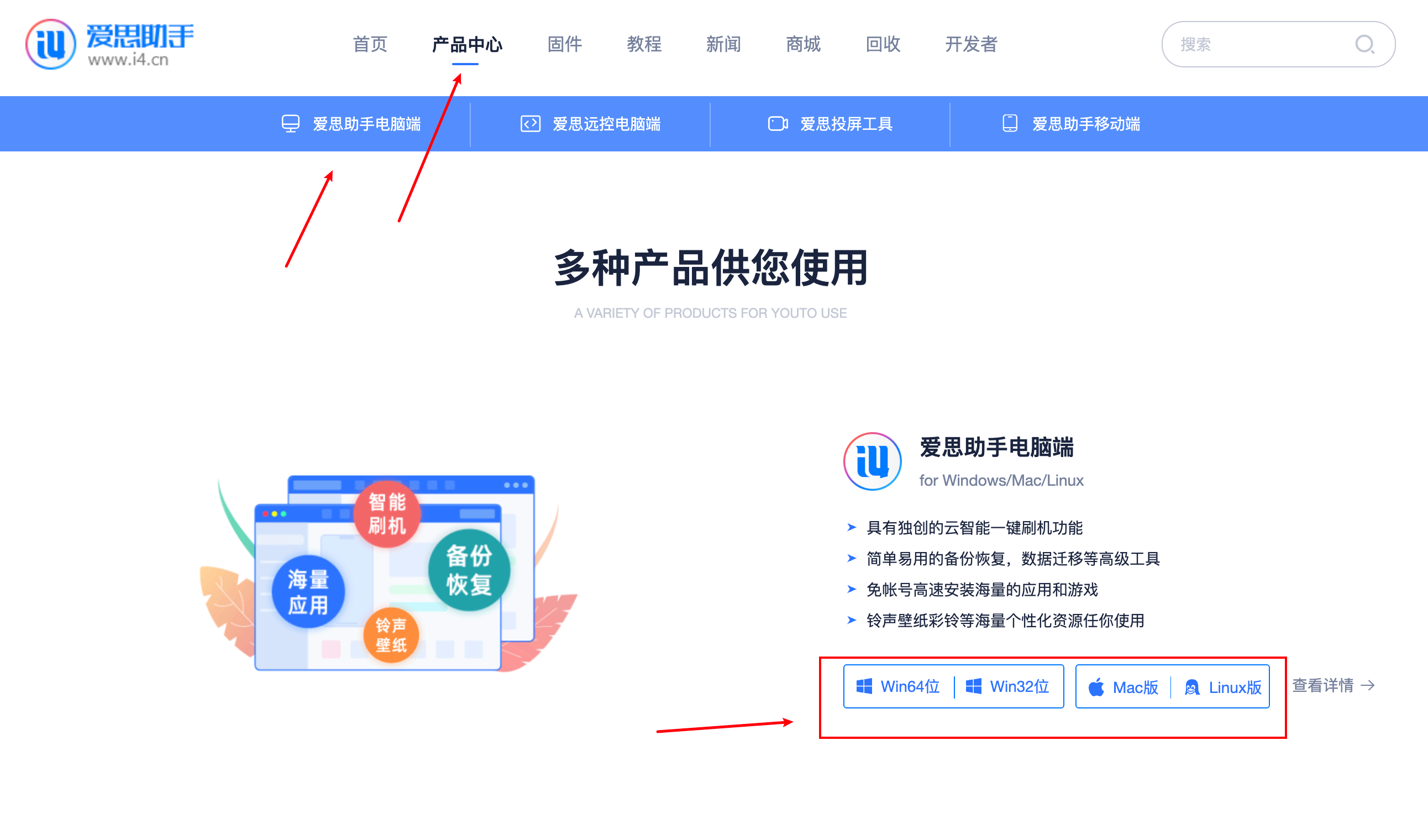
Download the corresponding version by computer type
Use data lines to connect mobile phones after installation and turn on Aether's assistant
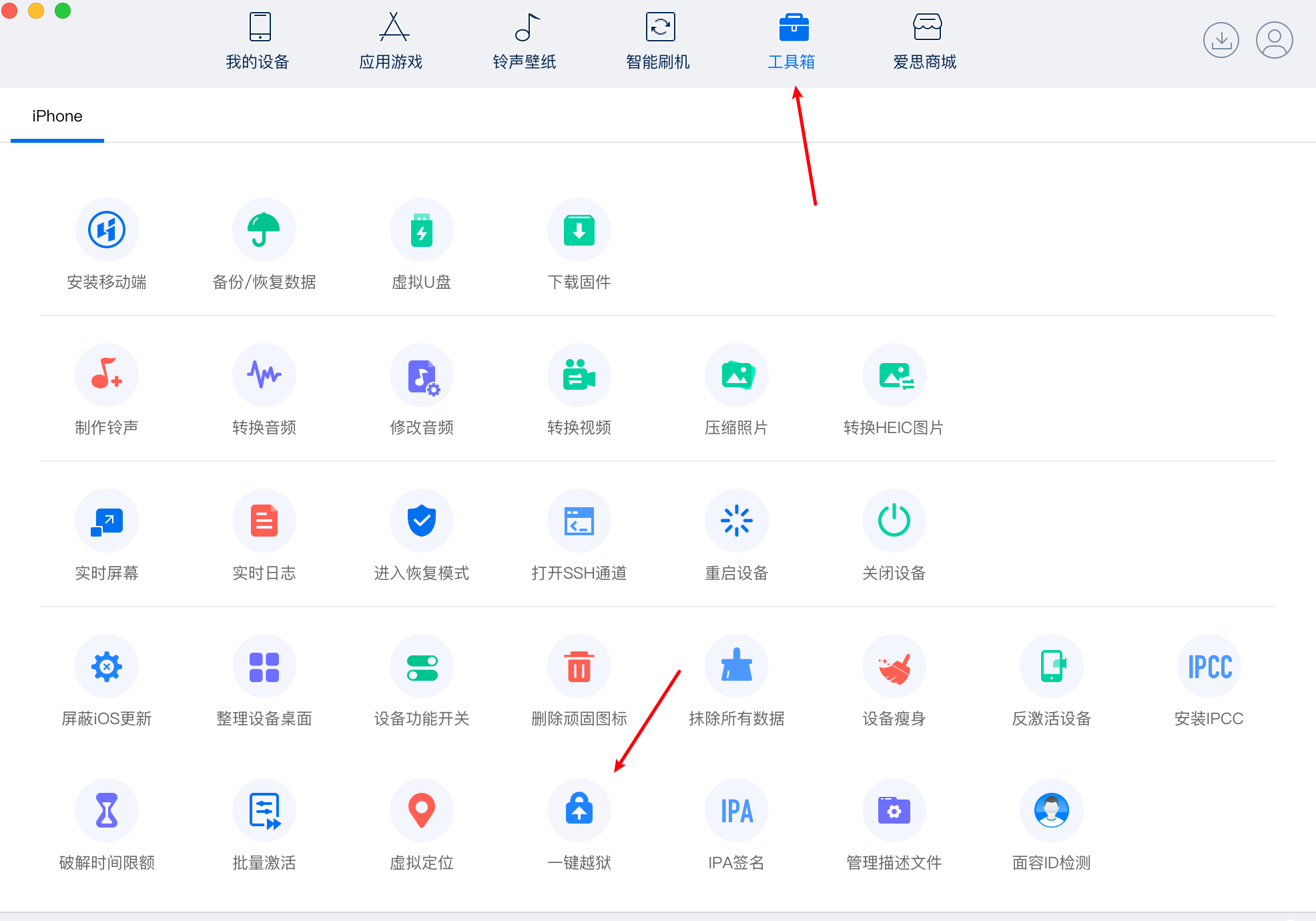
Click on Top Toolbox
And click jailbreak, open jailbreak tool

Check Taurine, click to start jailbreak

Starts the jailbreak step by ejecting a dialogue box that requires the input of appleid into your own apple id point.
If there's a red word for failure, the probability is an apple id problem, you can try it again.
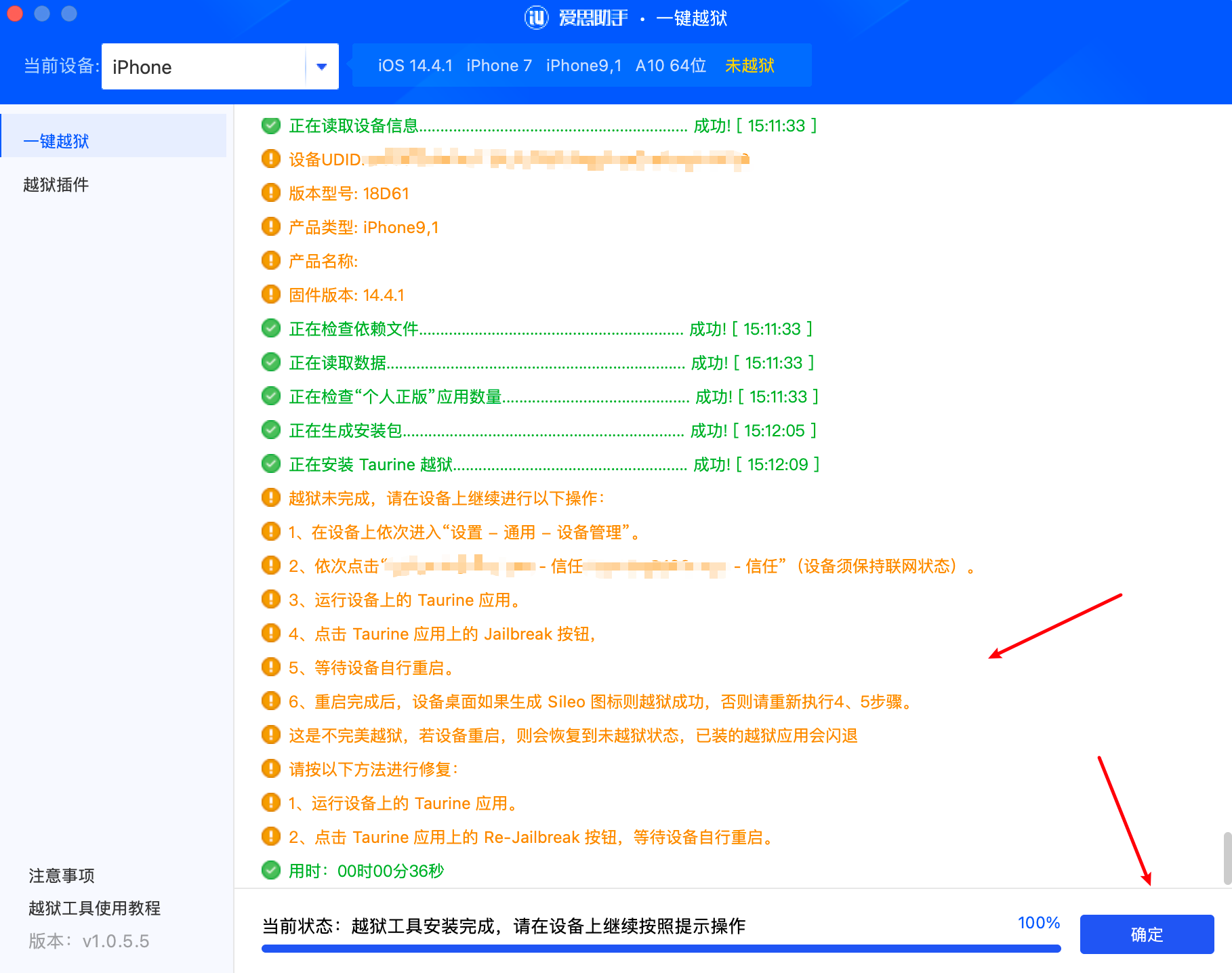
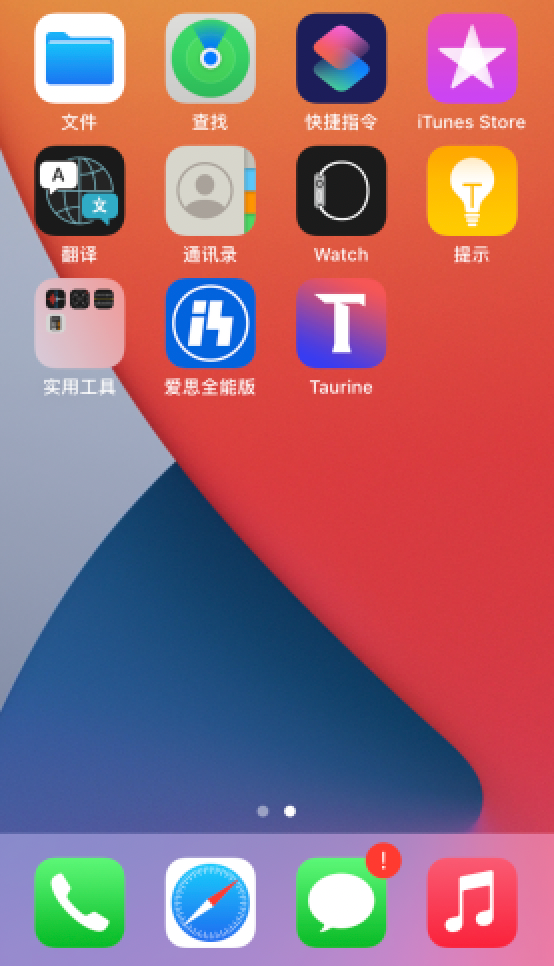
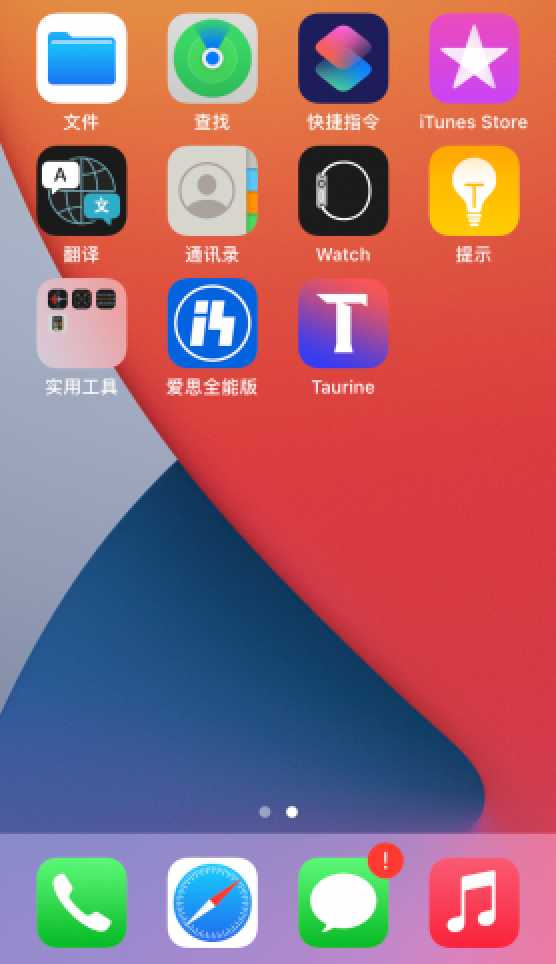
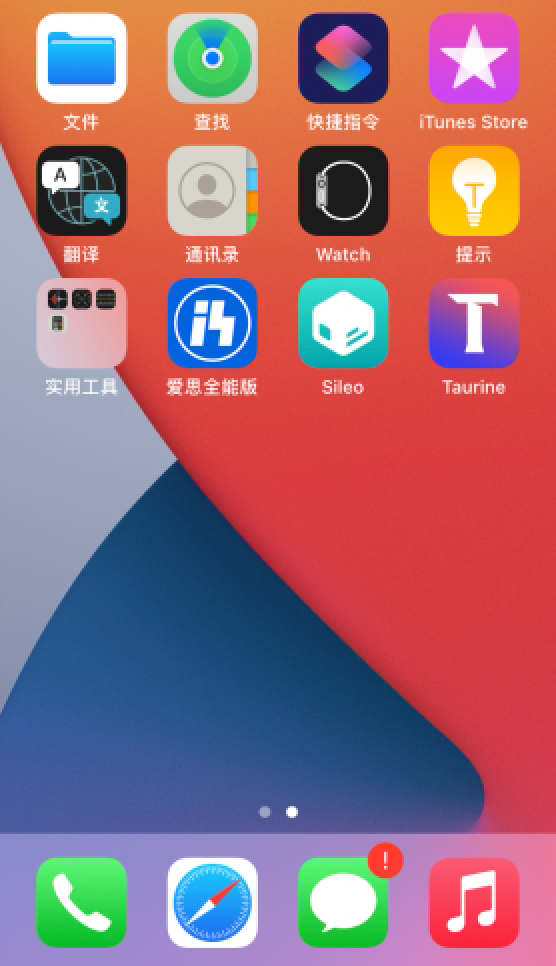
jailbreak is complete and continues with the next operation, as you see the Taurine icon on your cell phone desktop.
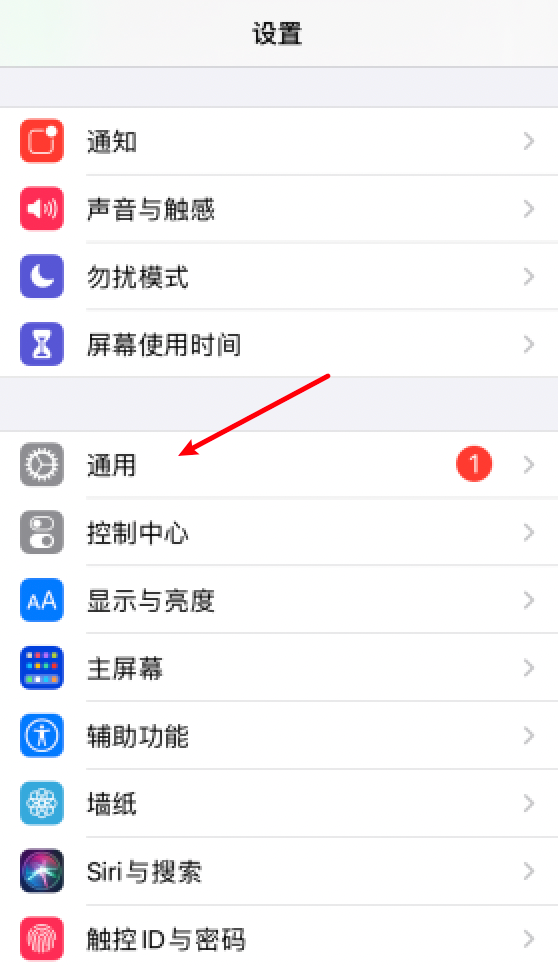
Open iOS Settings, click Universal
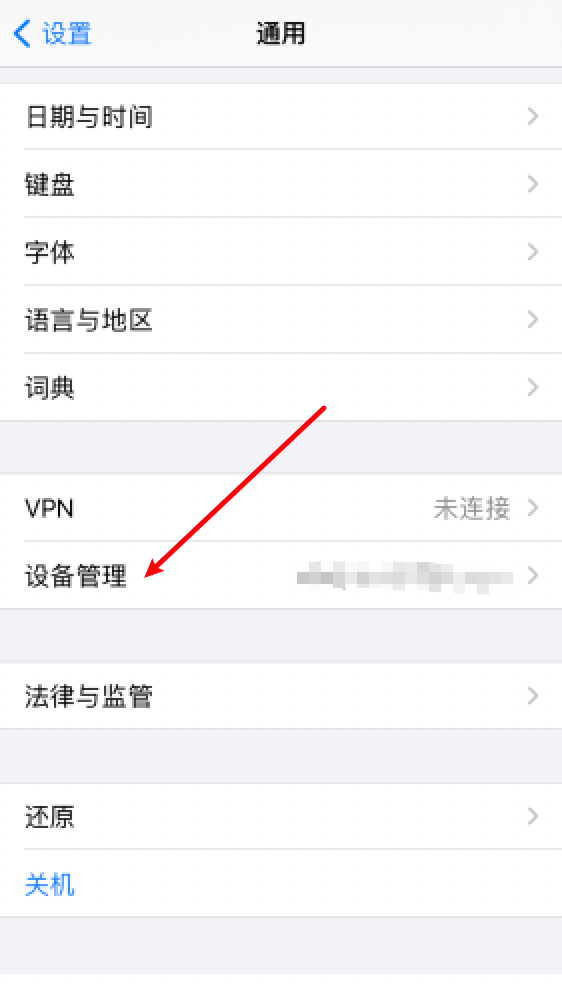
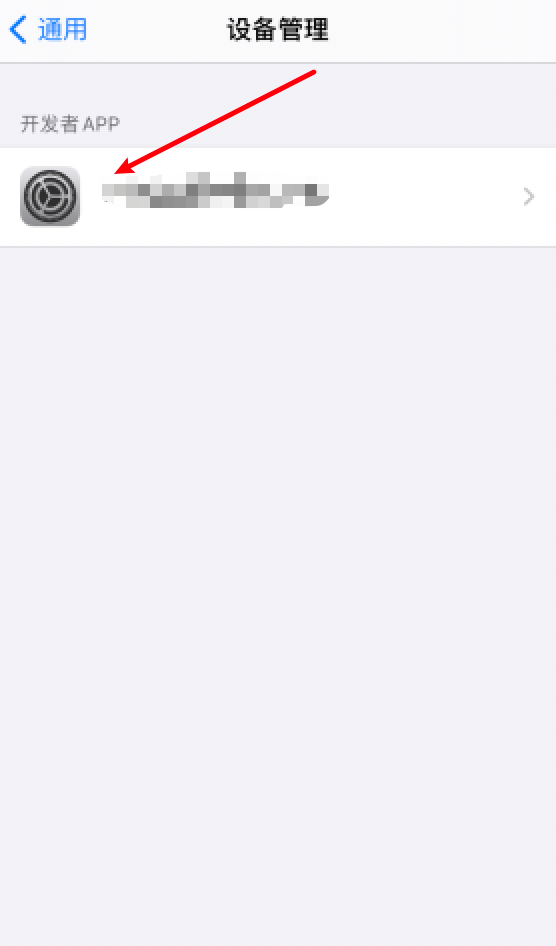
Click on Device Management,Click Developer APP
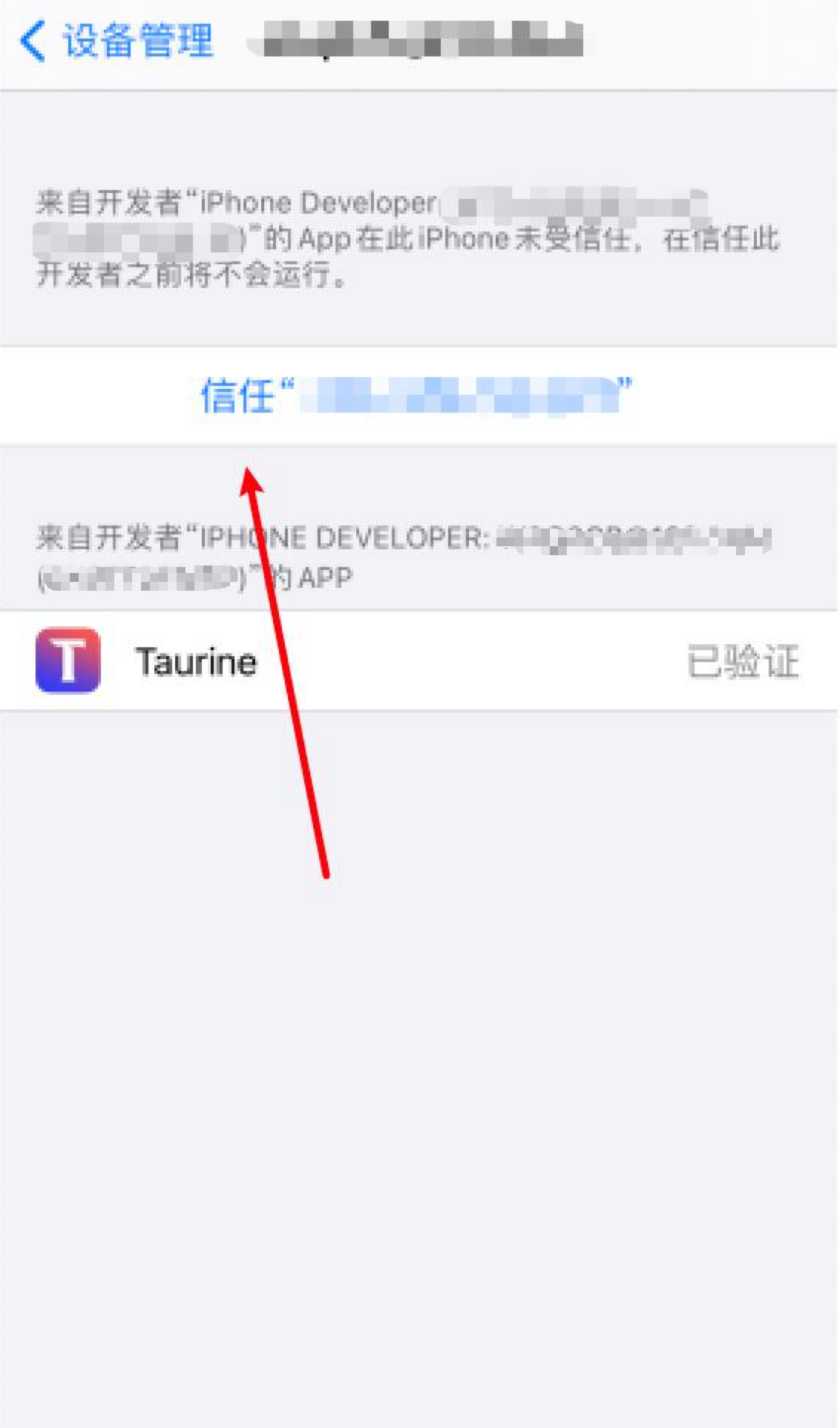
Click, trust, click again after the bullet window.
Then you can return to the desktop to open Taurine for jailbreak.
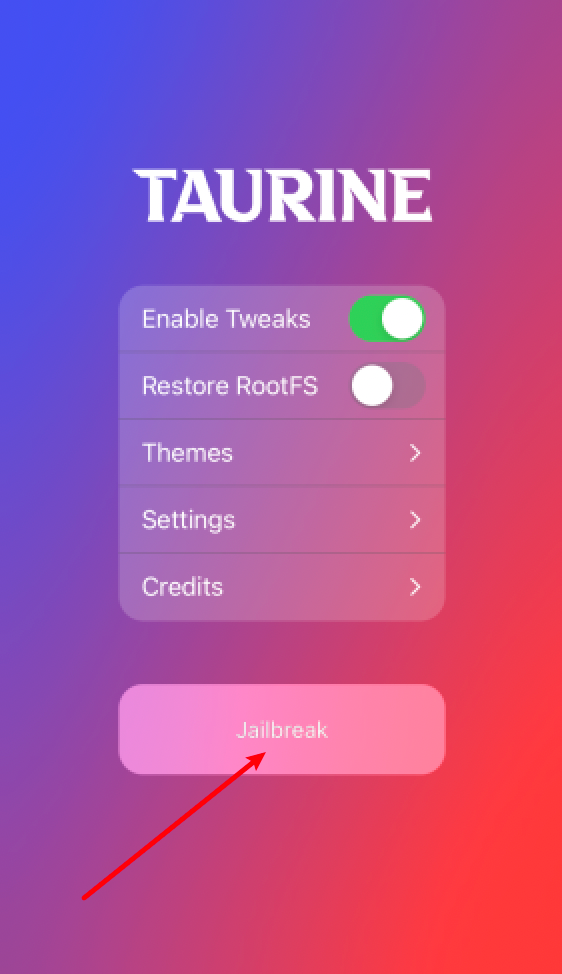
Click on Jailbreak to start jailbreak, if not successful, several more times.
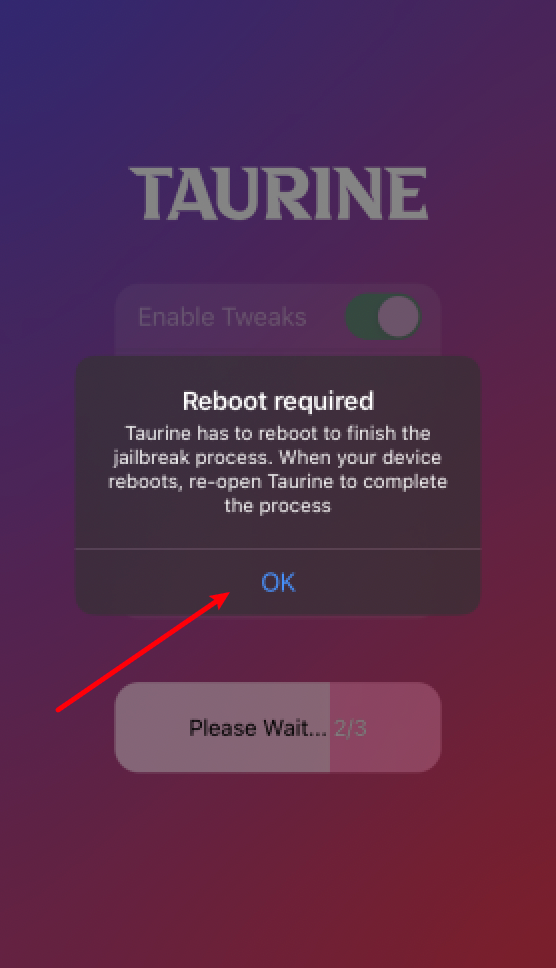
Seeing this tip, jailbreak is finished. Click OK. Just a minute, the device is restarted and reopened.Taurine jailbreak can automatically install the Sileo store.
Notes:
(1) This jailbreak is imperfect jailbreak, which must be used every time the device is restartedTaurineRedirect jailbreak;
(2) Seven days later,TaurineApp certificate expired, openTaurineApp's gonna bounce back and reset it with Athe's assistant jailbreak;
(3) Not every timeCertificateExpires are reactivated, so they can be installed with a giant assistant.Taurineapp, reference course: -()The Giant's Assistant Installer.)
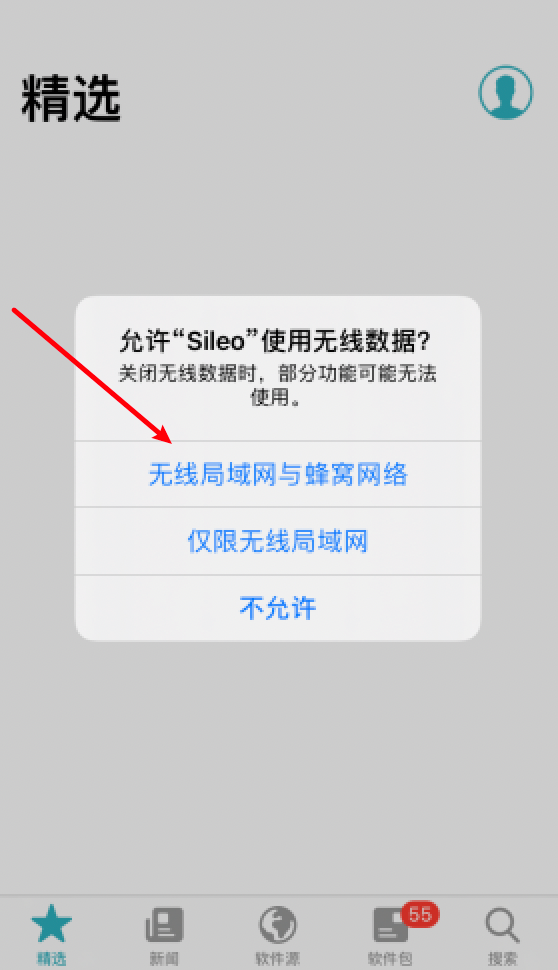
When Sileo is opened, if it's a state-line device (a mainland Chinese cargo device with a model number at the end of CH), there will be a allowing "Sileo" to use wireless data.
2. Installation of dependency packages
First time Sileo, wait patiently until the bottom repository is loaded.
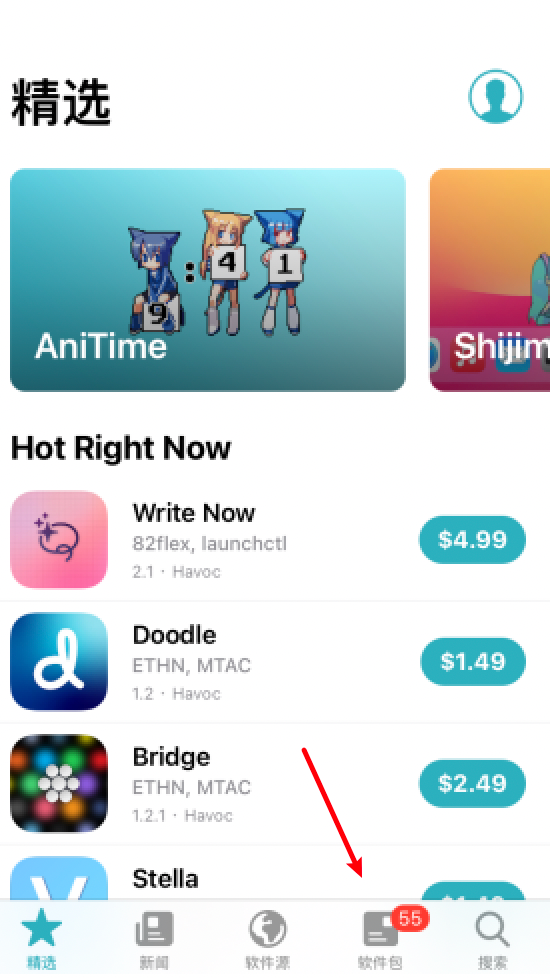
When loading is complete, see a dependent package that needs updating and click on the bottom software Package
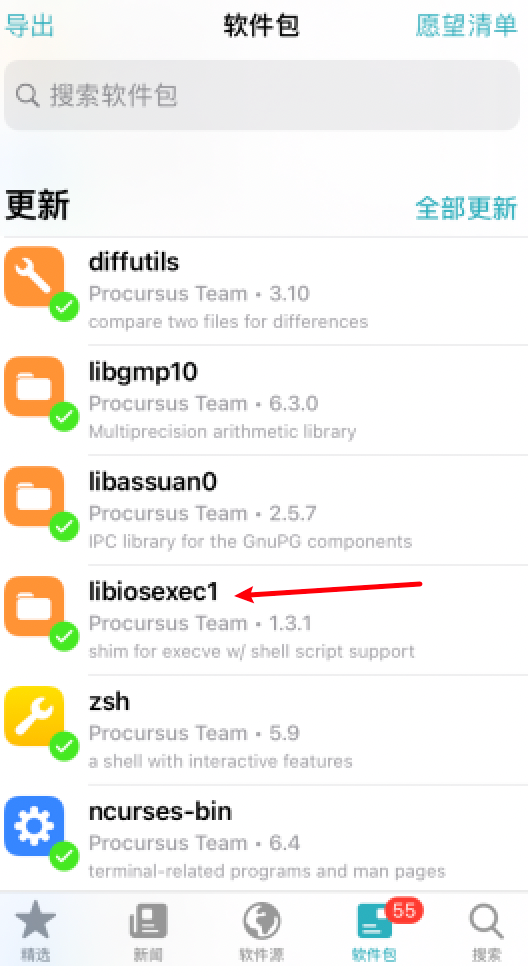
Update libiosexec1 first, or there will be a mistake. Play. Window

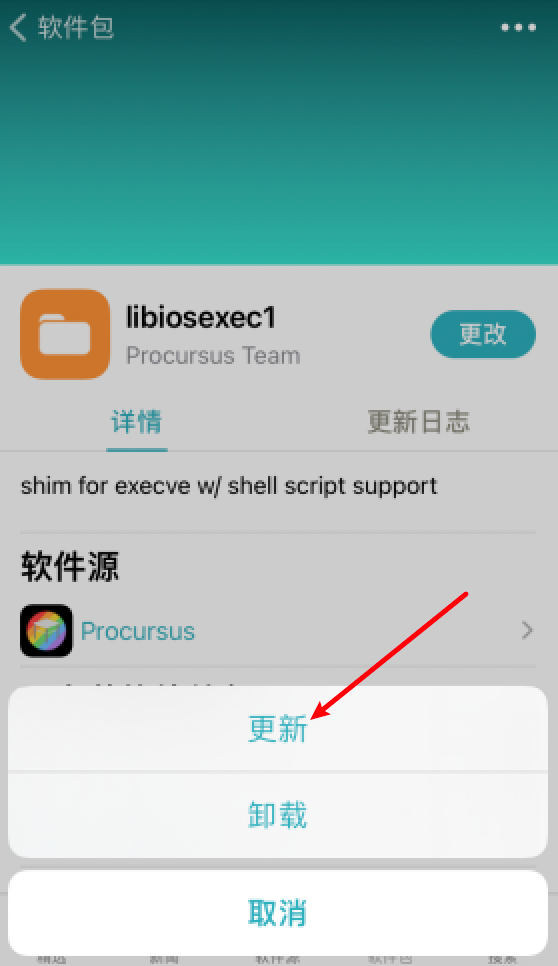


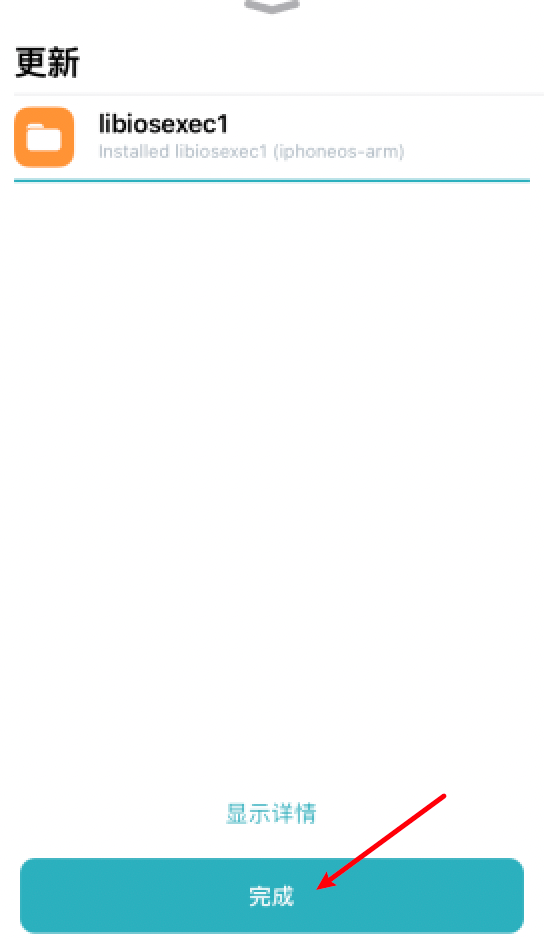
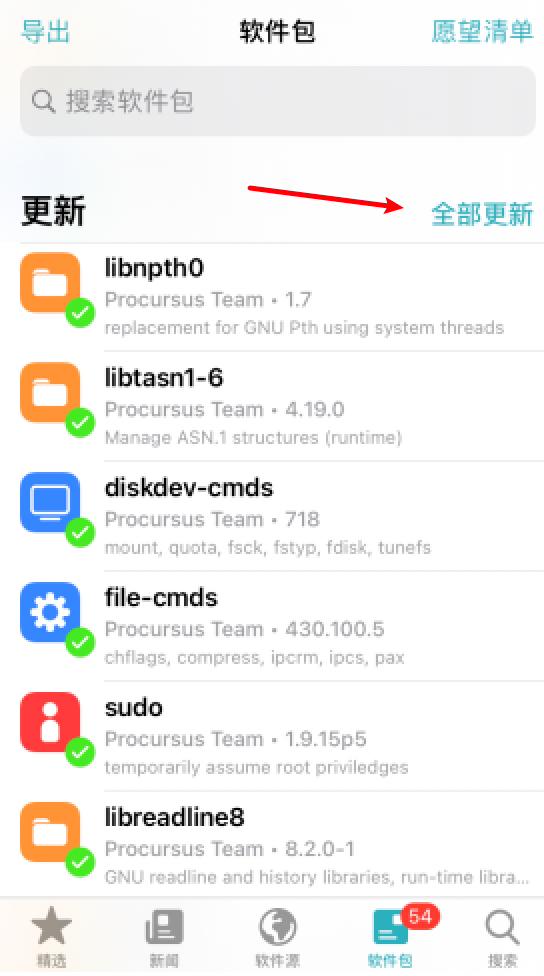
Update libiosexec1 and then return to the package and click on all updates
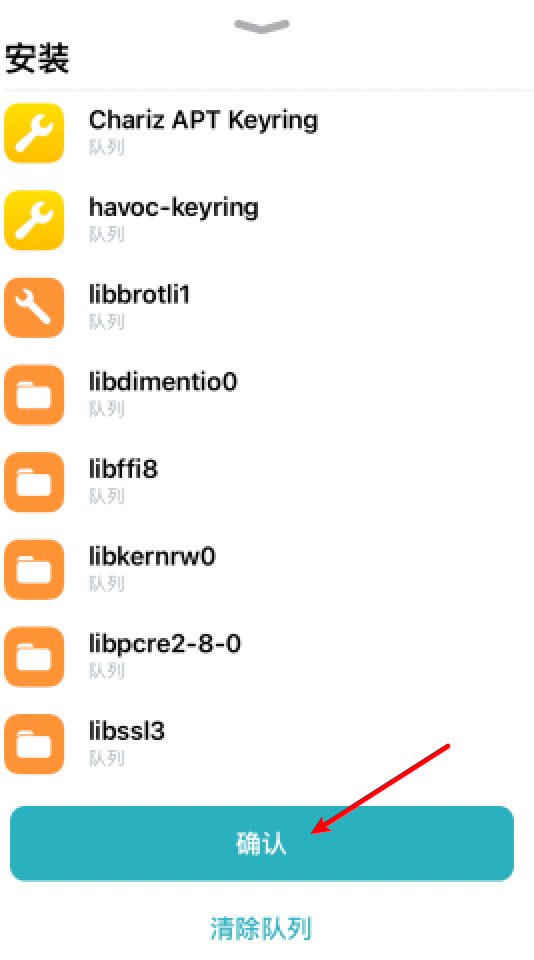
Click to confirm that until complete reliance on package upgrades is complete, some parts of the mainland China network may be considered for magic.
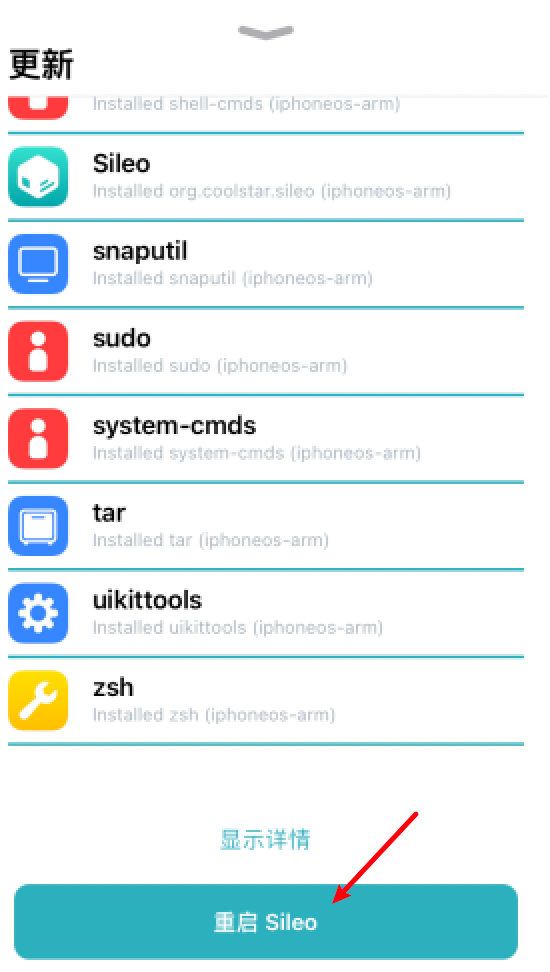
After all updates, click Restart Sileo and reopen Sileo
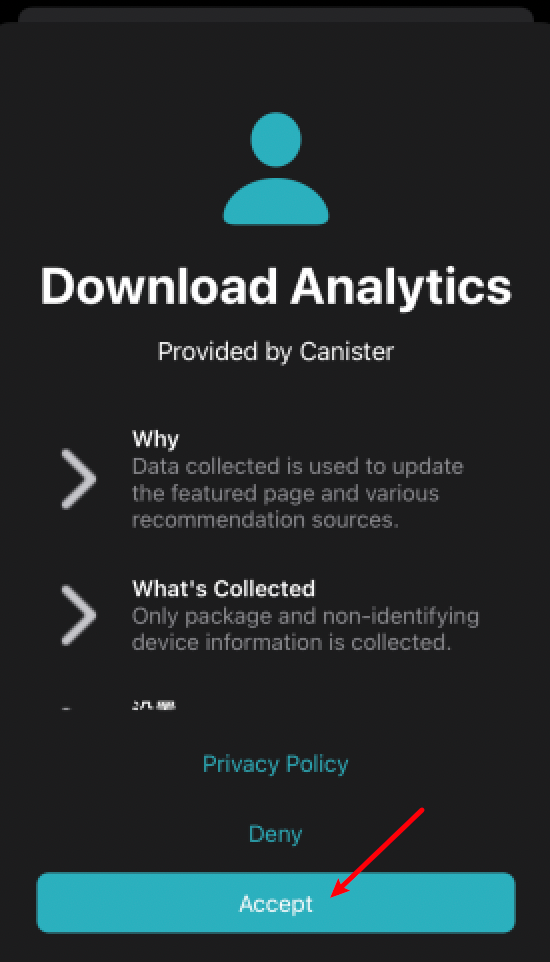
Click Accept to install tweak with Sileo.
3. Installation of tweak
The first thing after jailbreak is to install tweak, and can read this article -"jailbreak"
4. Remove jailbreak guide
How to RemoveTaurine jailbreak:
Reboot the device and turn it on.Taurine App
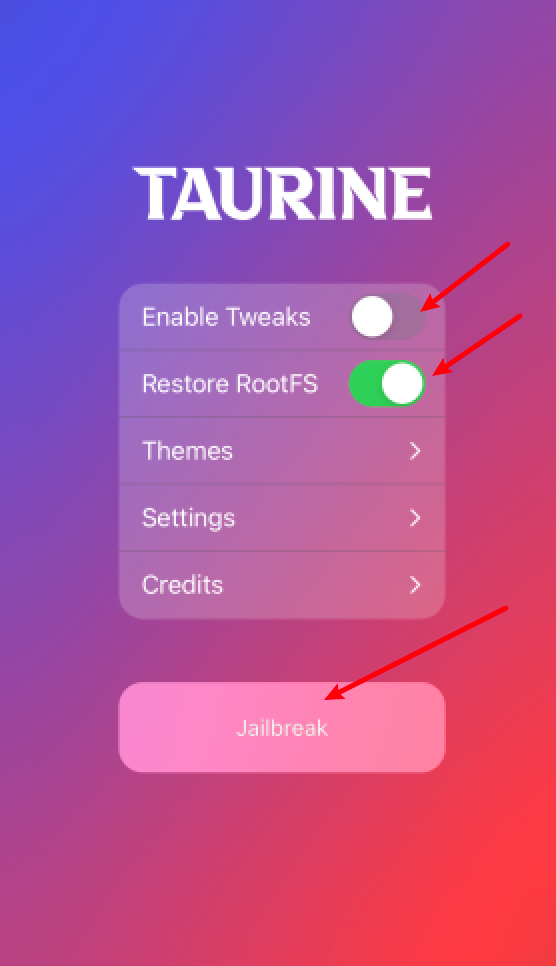
Open Restore RootFS switch, close Enable Tweaks switch, click Jailbreak
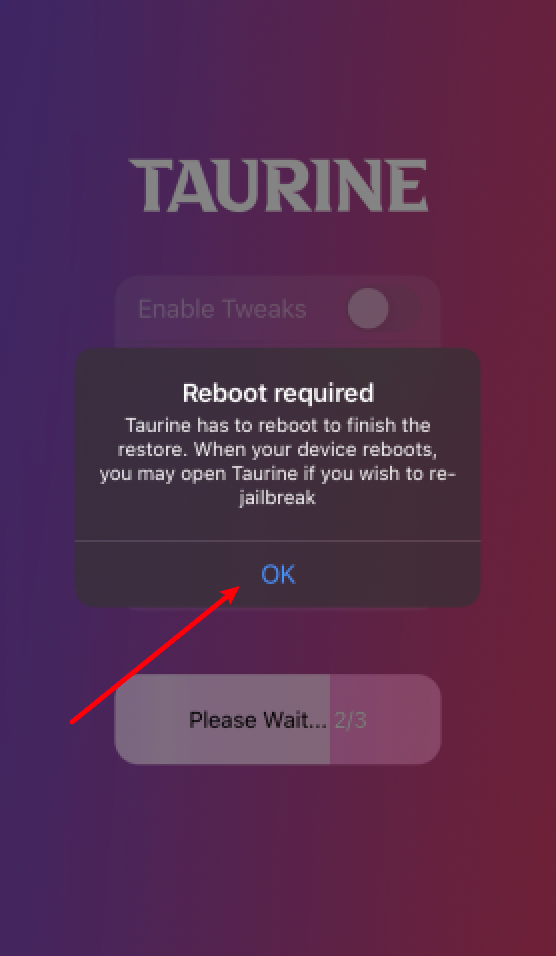
Wait for a moment to see a hint to remove jailbreak, and click OK, the device will automatically restart, and when the Sileo icon disappears, you will return to the state of jailbreak.