
Jailbreak Tool Guides
palera1n Rootless Jailbreak
palera1n rootless jailbreak guide

Palera1n address:https://palera.in/Copy
Support equipment: iPhone 5s - iPhone X
Support for iOS version: iOS 15 - iOS 16.7.11
jailbreak, please make sure the device is not unlocked and please turn off my iPhone to prevent all accidents.
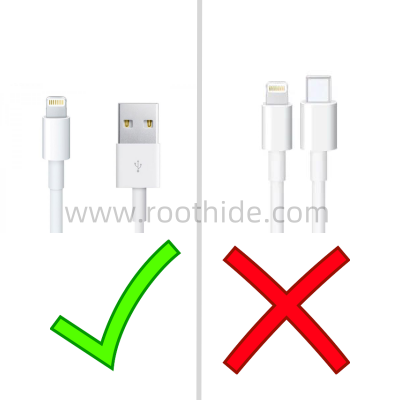
Use USB-A (the old apple data line) for jailbreak, and USB-C cannot jailbreak.
Special remarks:IfYes.A11 series equipment(e.g. iPhone X)andSystem is iOS16,If a password has been set previously, you need to erase all content and settings (back up the important data!!) before you can use the jailbreak with the palera1n.
It contains the following:
2、jailbreak guide;
3 and jailbreak
Install necessary dependency packages
jailbreak tool download:
Other Organiser
palera1njailbreak tool Download
2, jailbreak guide:
Windows jailbreak guide
MacOS system ZXQTERM-5QXZ
Here, for example, iPhone X iOS 16.7.11 MacOS equipment pre-installed palera1n
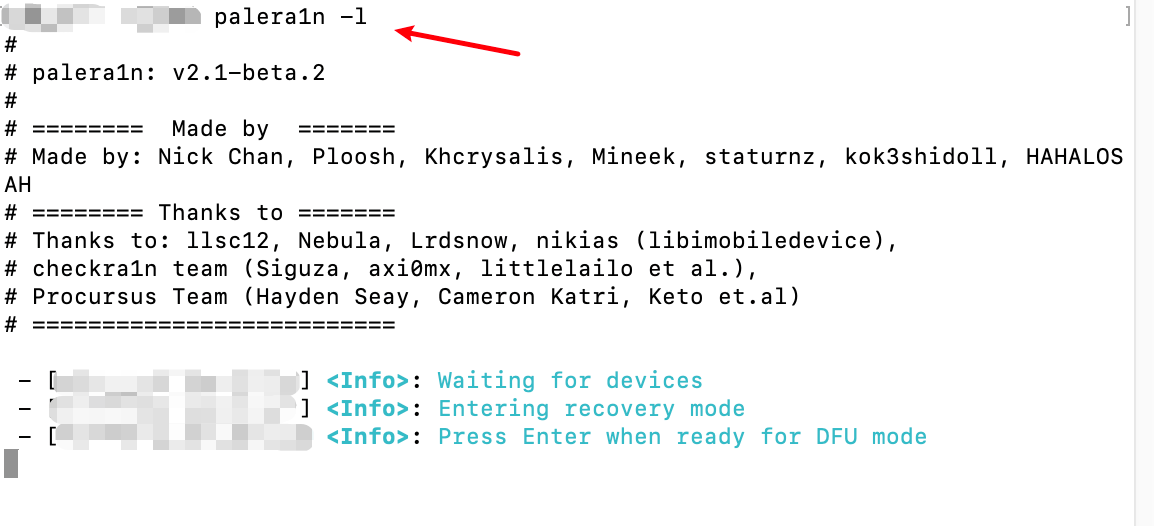
Open MacOS terminal, enterpalera1n -lCopy Back to the car.
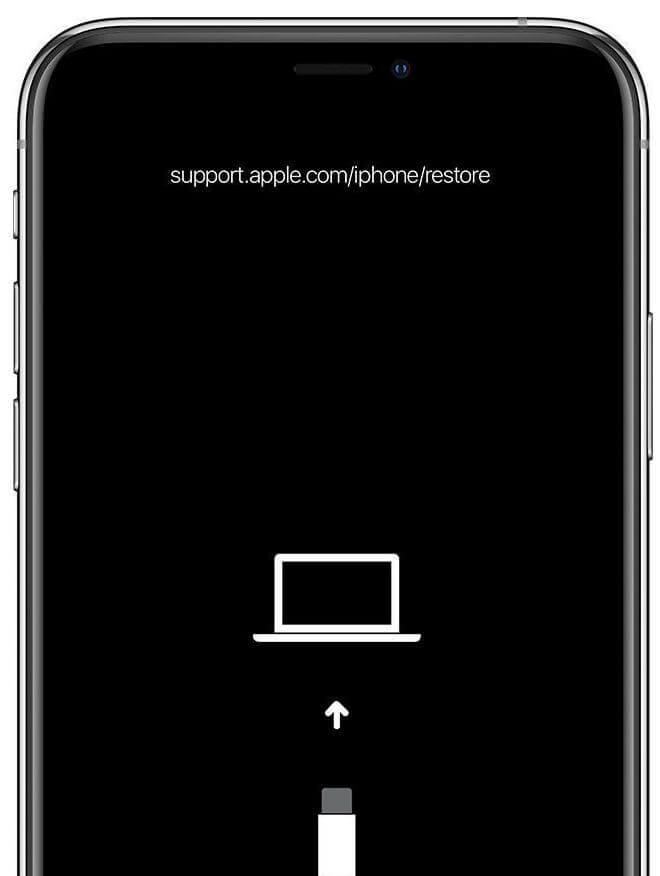
At this point, the equipment will enter recovery mode as follows:
Put your finger on the volume - and on the key (do not press first), as shown below.
(HoME keys and opening keys if there is a physical HOME key, e.g. iPhone 5s, 6s, 6s, s etc.)
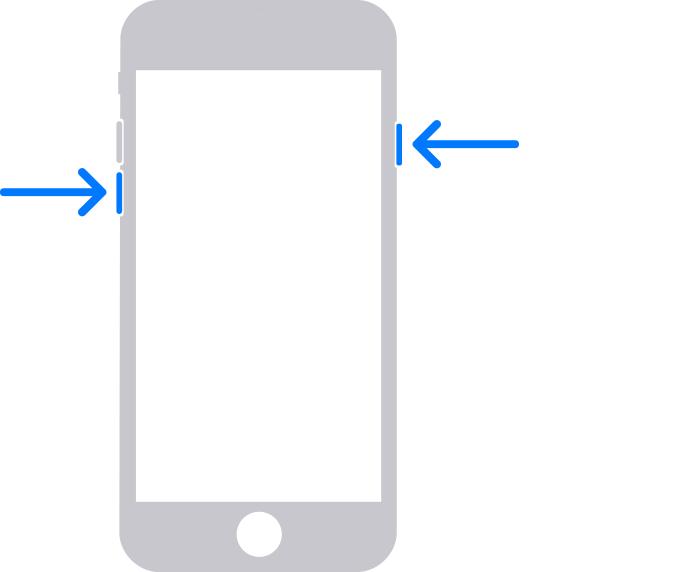
And then press the Enter key on Mac's computer.
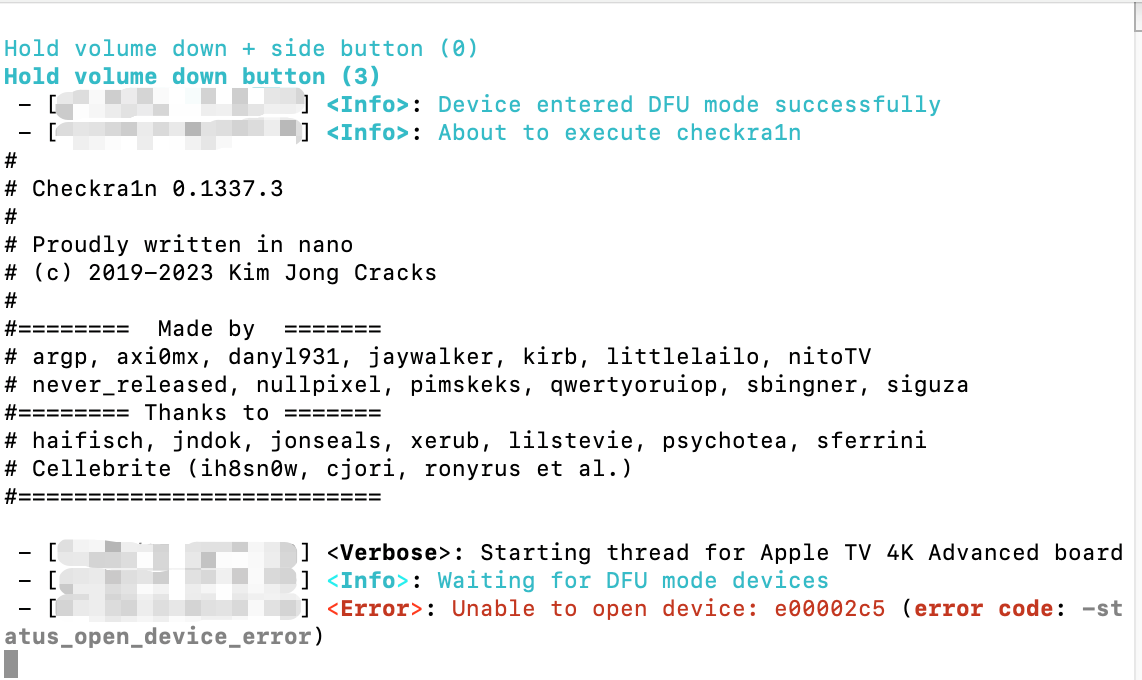
While pressing the return key, you immediately hold down the number of your cell phone - and open it for four seconds.
Untie the key and hold on.Cell phone.Volume - does not play.
Wait about 10 seconds to get into DFU mode and see jailbreak
If there's one.Unable to open device Words, re-plugging data lines, jailbreak processes will continue automatically
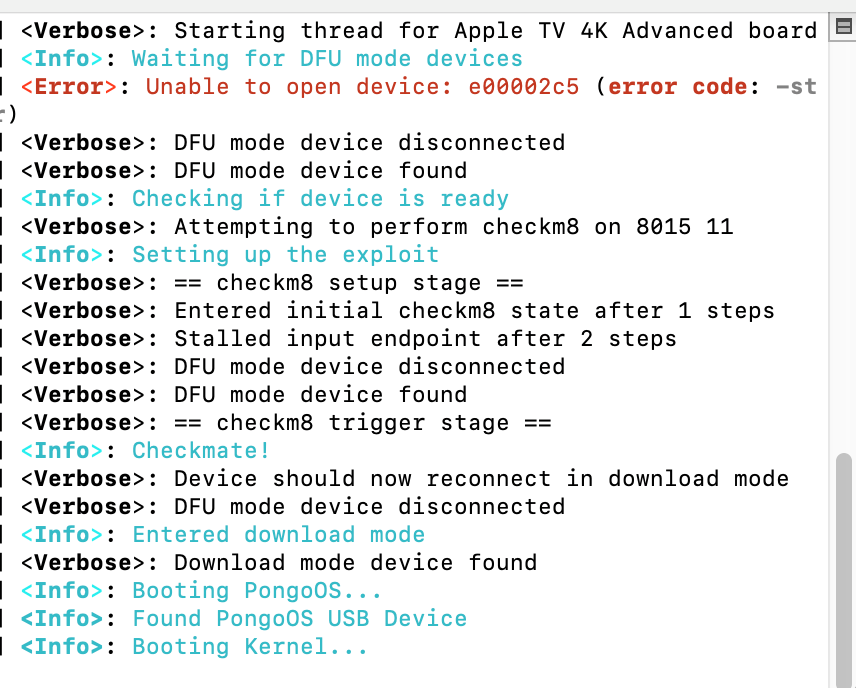
Some of the equipment will be stuck. Booting PongoOS does not move, you can close the window or CTRL+C abort the command and restart the command line terminal to run again palera1n -lCopyjailbreak will continue automatically.
Seeing Booting Kernel, Palera1njailbreak process running, automatic rebooting of equipment, jailbreak completed
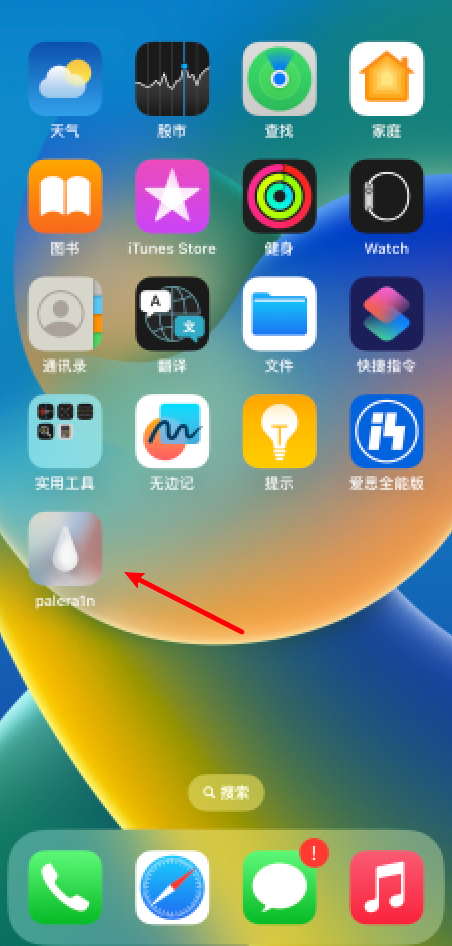
Desktop appearance Palera1n icon, click Palera1n icon
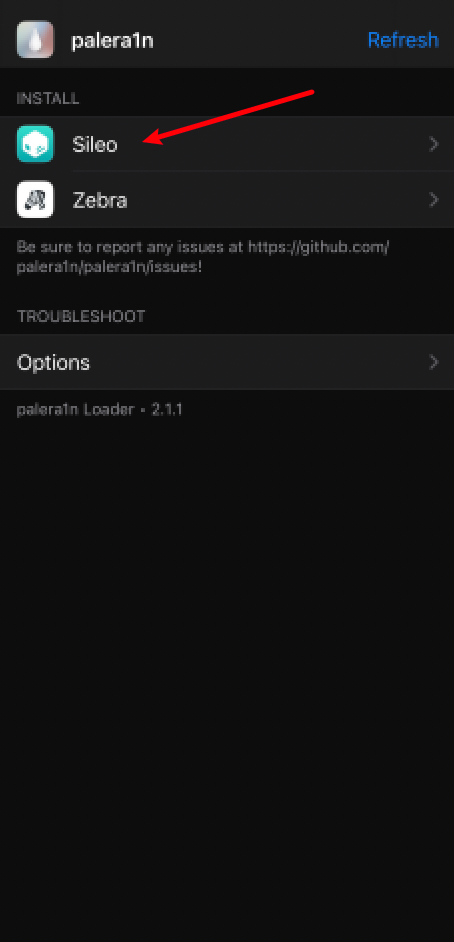
The installation of Sileo Shop and Zebra Shop menu appears, click on the installation of Sileo Shop
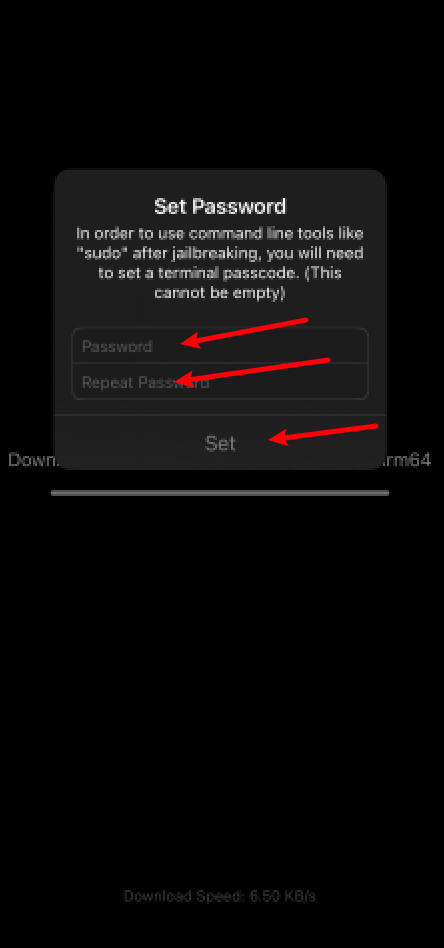
After the Sileo store is installed, you will pop up the root password input box and fill in any two characters.For example, we'll have to fill in six.
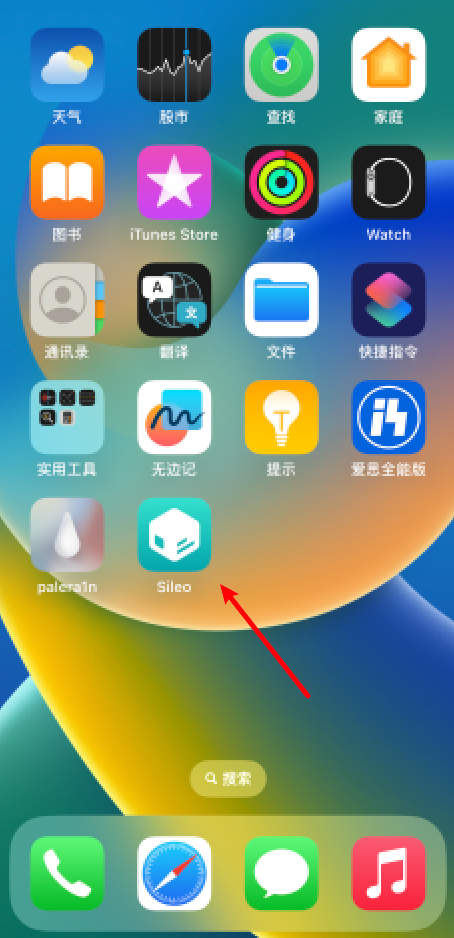
Installation complete. Desktop displays Sileo Shop icon
Ann.Load necessary relying packages
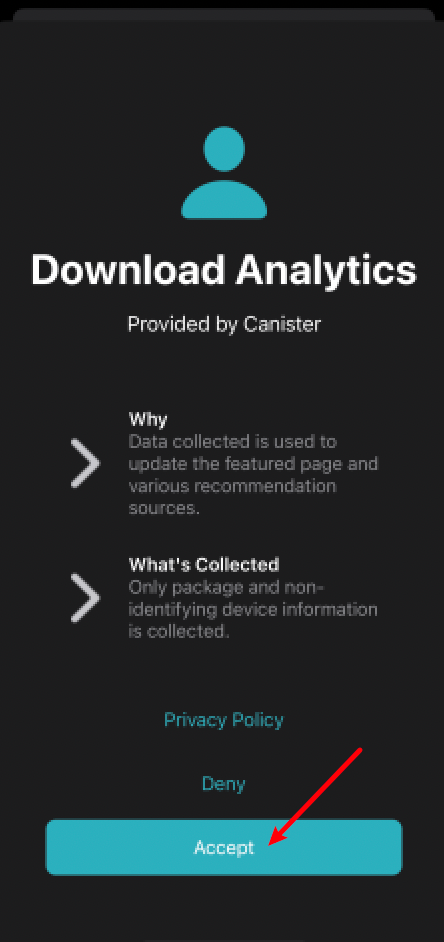
Open Sileo Shop, click Accept
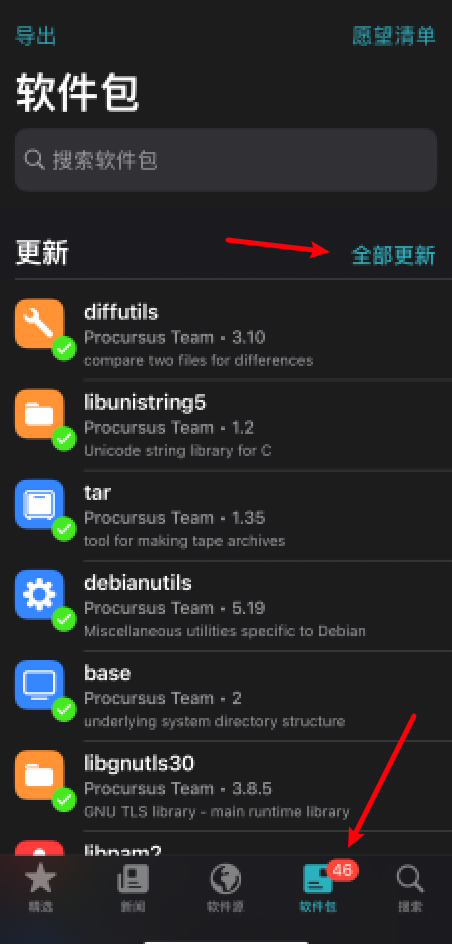
Click on bottom Package, Click on Update All
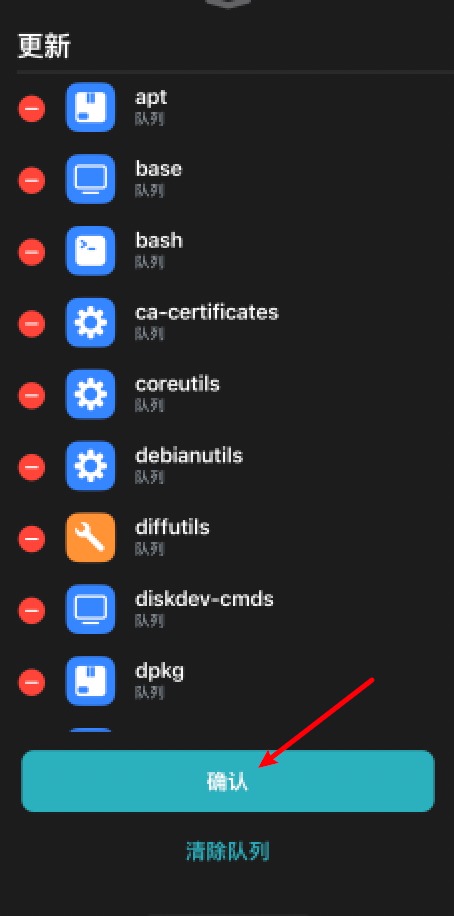
Click confirmation. Start downloading dependent packages.
Following the completion of the package installation, the Sileo store will be automatically closed.
tweak for installation
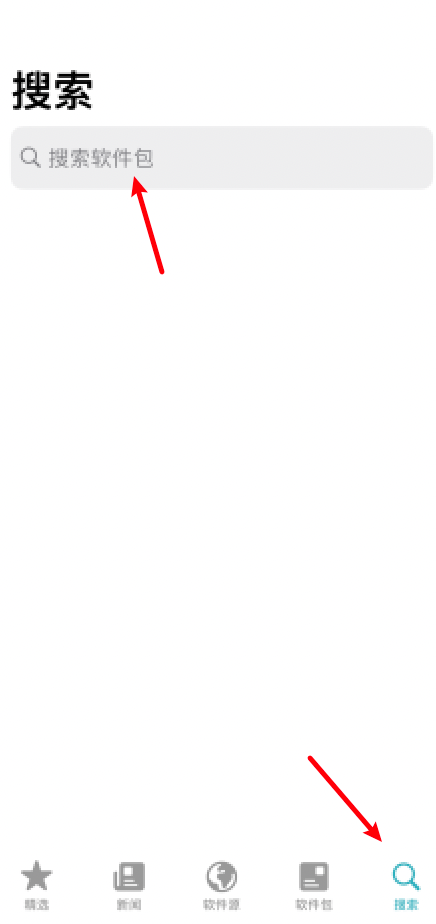
Open Sileo store again, click on the bottom right, search, click on the top search box.
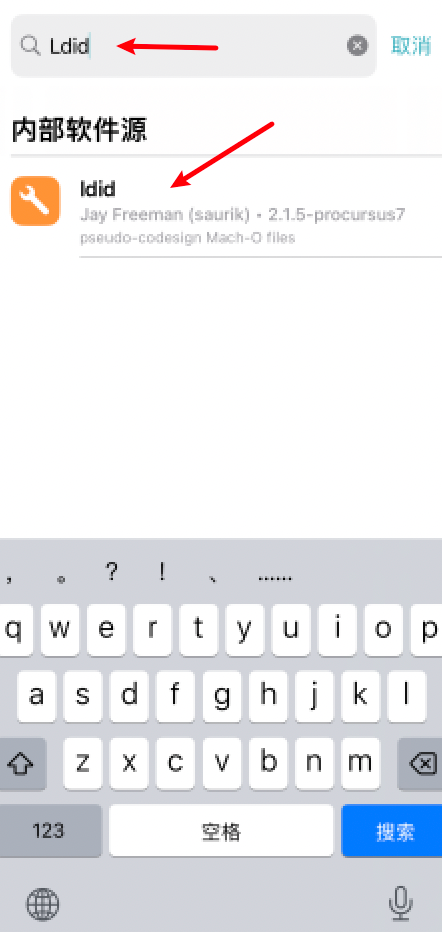
Enter Ldid in the search box, click the searchable Idid tweak (dependent on fc2tweak)
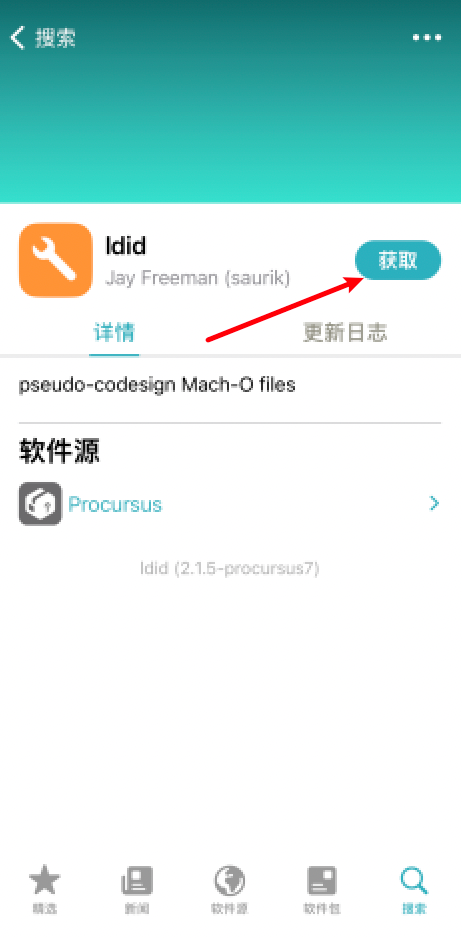
Click to get
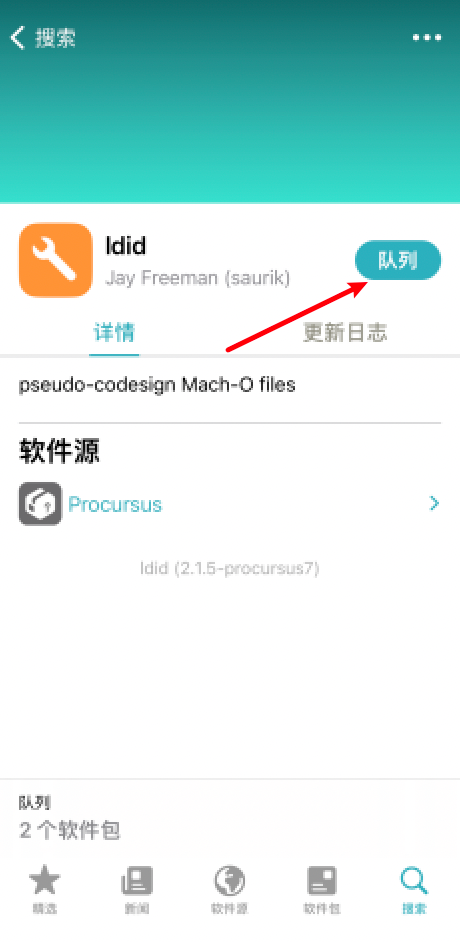
Click Queue
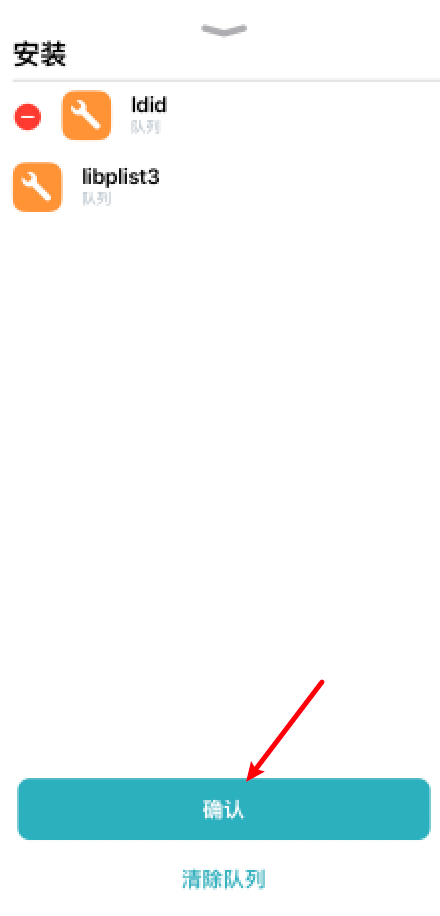
Click to confirm
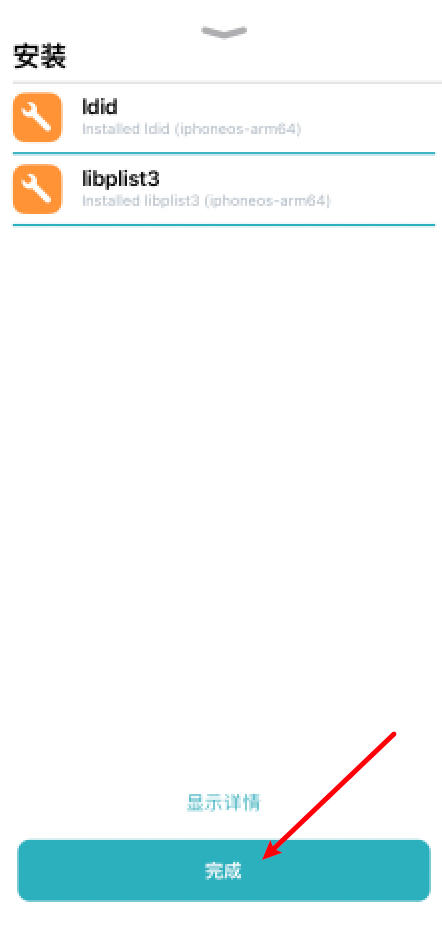
Click Finish
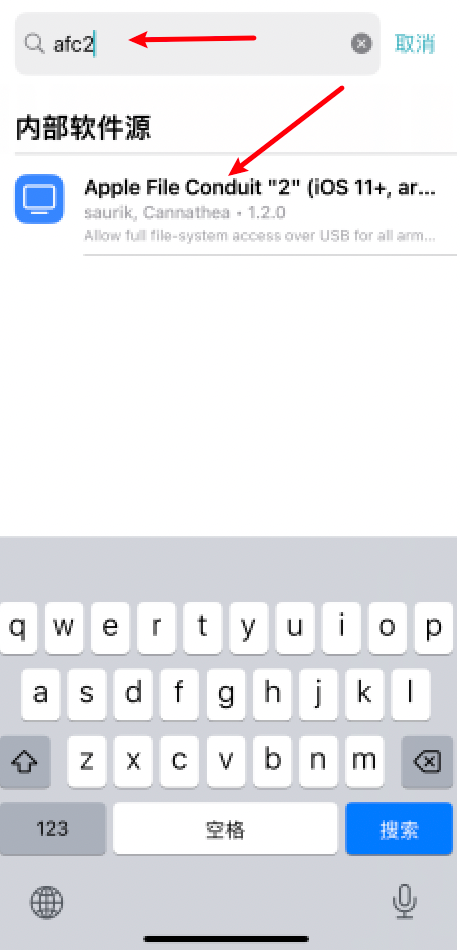
Open the search box again,Enter fc2 in the search box, click the fc2 foundtweak(Apple File Conduit "2" ,tweak for viewing jailbreak post-file system when connecting to a computer)
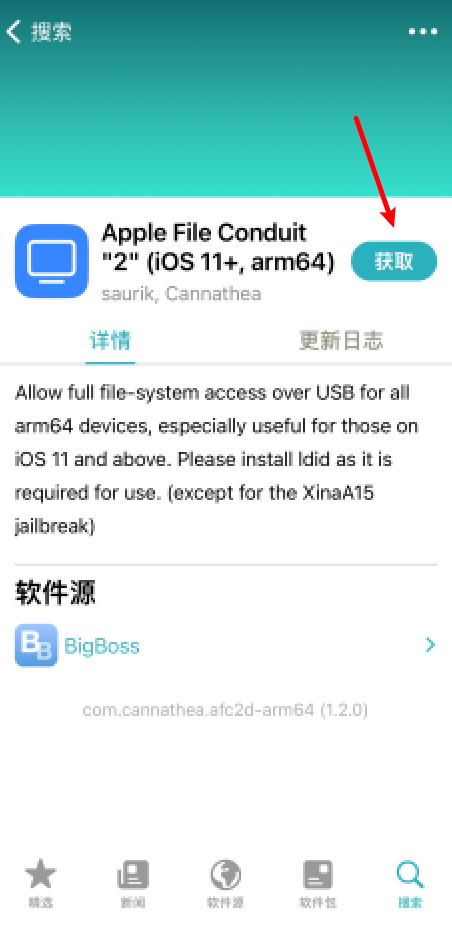
Click to get
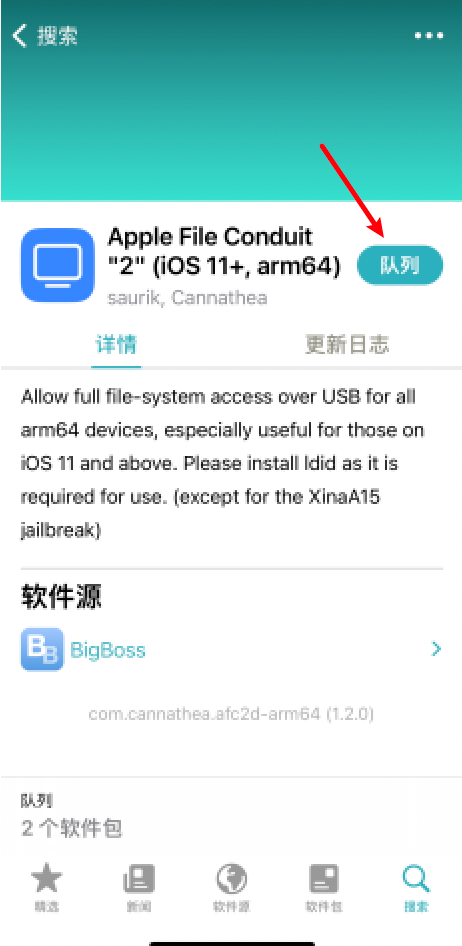
Click Queue
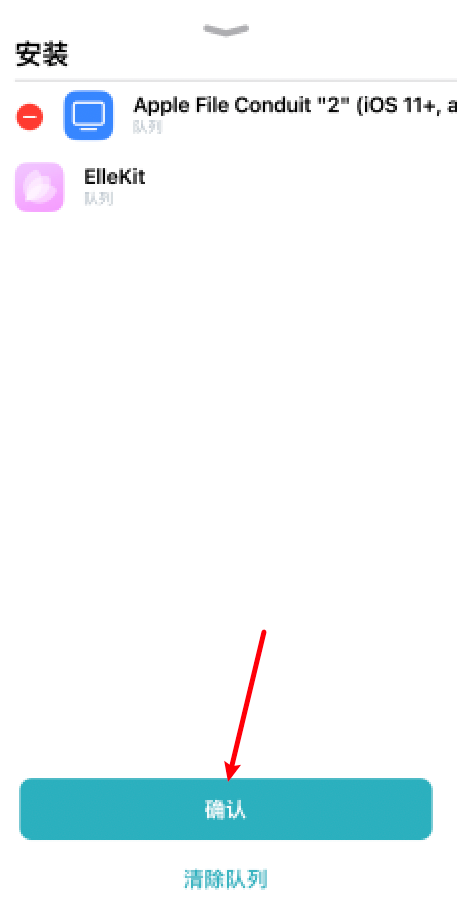
Click to confirm that the installation of afc2 is accompanied by the installation of the ElleKit base plate (all jailbreak tweak work-dependent)
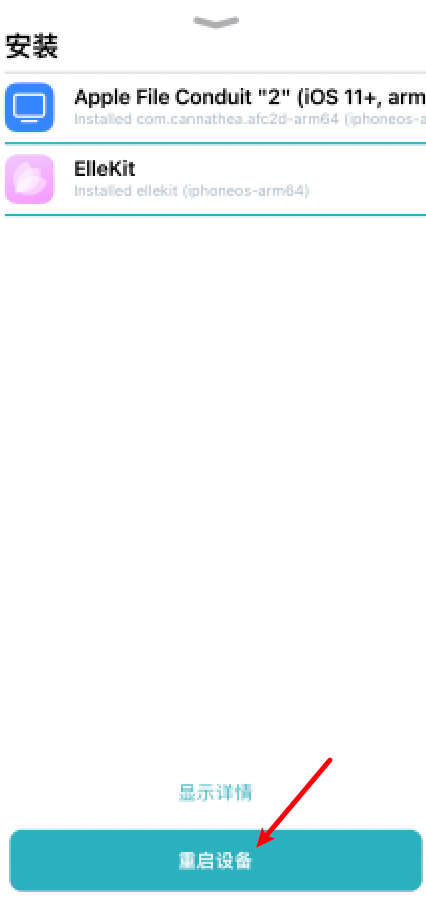
Click to restart the device (not really, just cancel),Then you can see jailbreak in Aeth's assistant.
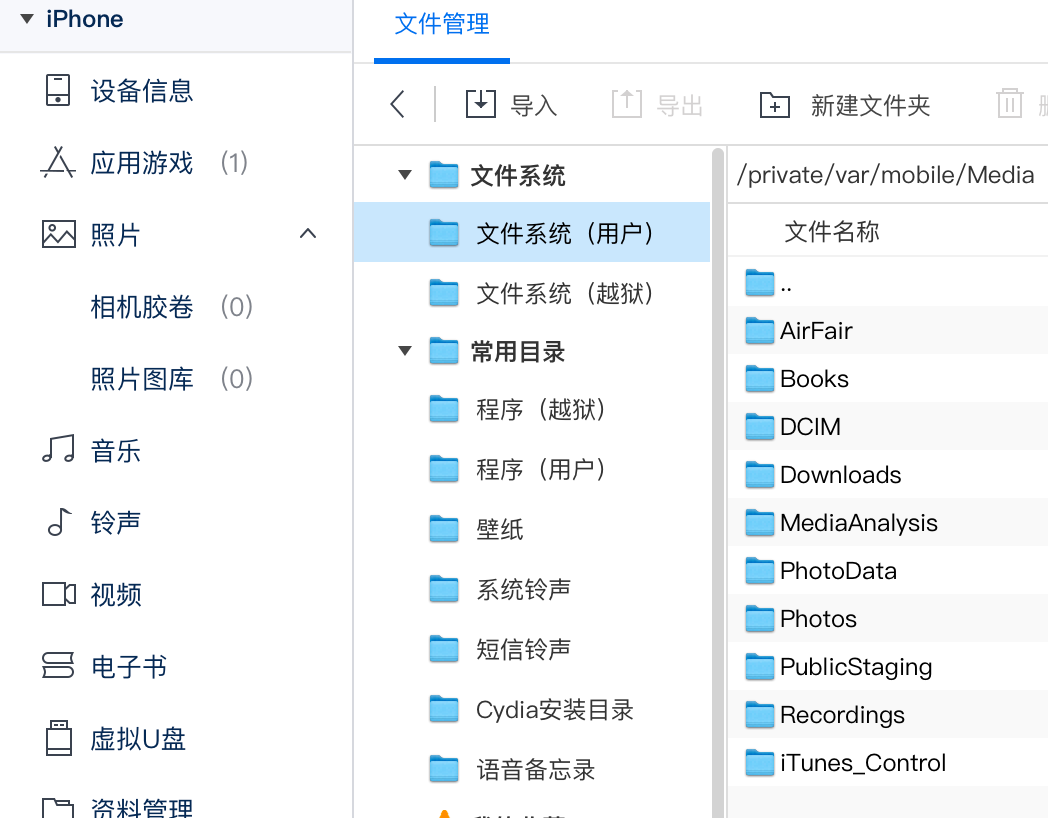
If Aeth's assistant does not see the jailbreak file system, re-plug the data lines.
Other jailbreak post-ZXZ"jailbreak"
Remove jailbreak guide
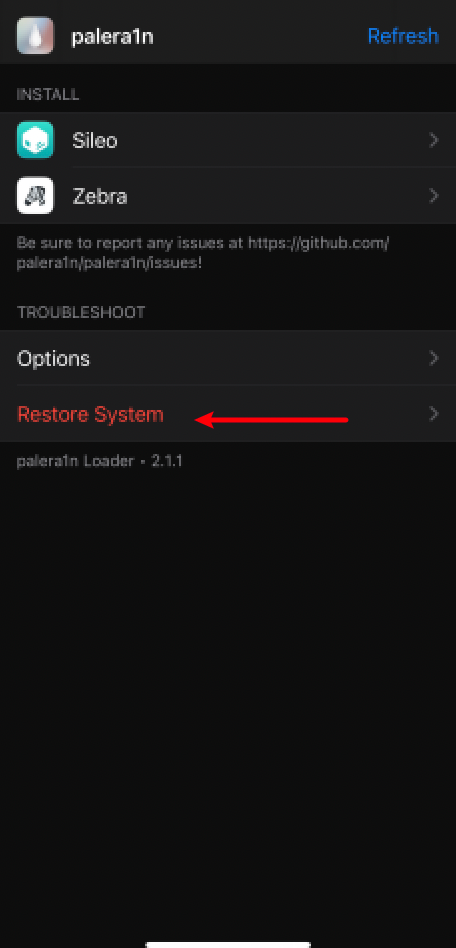
Open palera1n, click Restore System
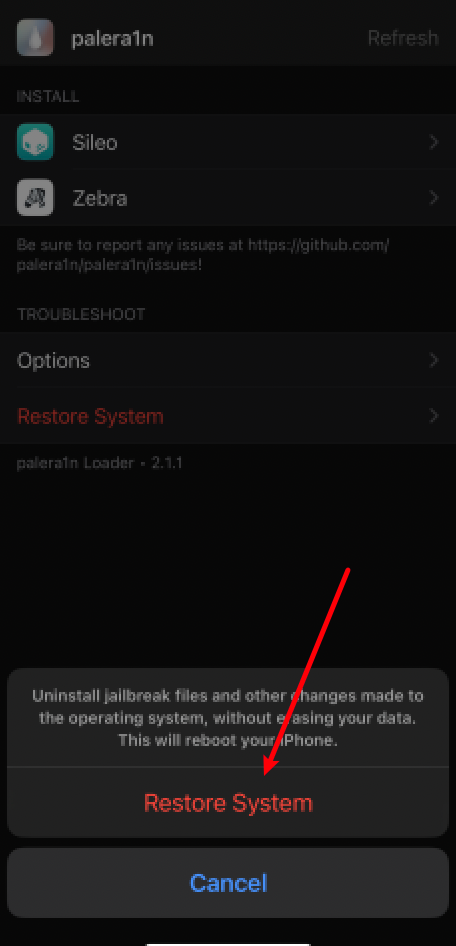
Click Restore System, wait a moment, the device is automatically restarted and jailbreak is finished.